
This page connects Access Gate to Active Directory or another LDAP server, so the users (and, if you want, the computers) it holds are available in access rules, next to your other directories.
Access Gate can use several directories at the same time. A common setup is your own staff in Active Directory, vendors and integrators in the Access Gate directory, and cloud accounts in Microsoft 365 (Entra ID). Every user goes through the same access rules, multi-factor authentication and session reports, whichever directory they come from.
Prerequisites
| Requirement | Details |
|---|---|
| Directory server | Microsoft Active Directory, or another server that speaks LDAP |
| Network path | Access Gate reaches the directory server on its LDAPS port, 636 by default |
| Service account | A read-only account allowed to list users (and computers, if you sync assets). Its distinguished name and password are entered below |
| Base DNs | The branch holding your users, and optionally the branch holding your computers |
| CA certificate | If the server's TLS certificate is issued by an internal CA, that CA certificate in PEM format |
Add the directory
- Go to Settings → Directories and click Add directory.
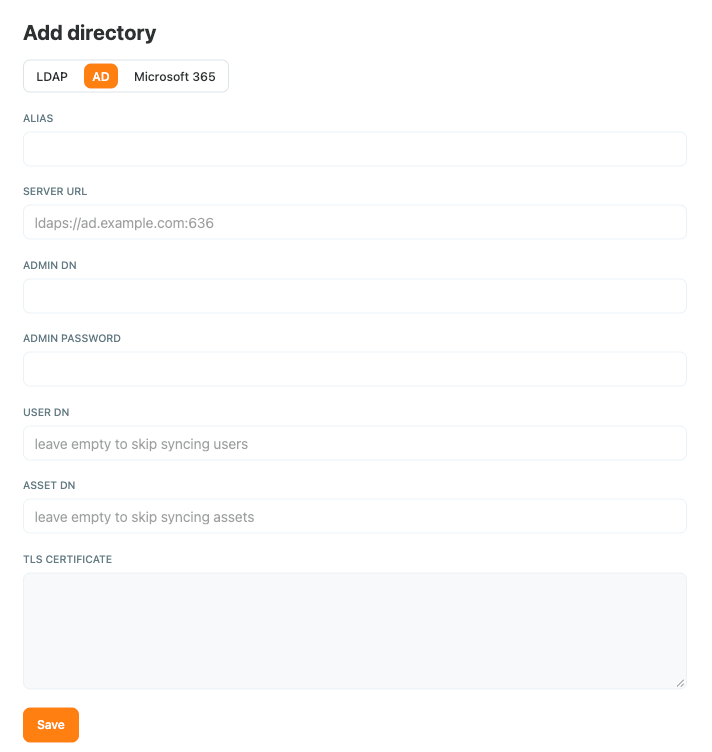
- Choose AD for Microsoft Active Directory, or LDAP for another directory server.
- Fill in the form:
| Field | Example | What it is |
|---|---|---|
| Alias | Corporate AD | The name this directory shows under in Access Gate, for example in the directory filter when you add principals |
| Server URL | ldaps://ad.example.com:636 | The directory server, over LDAPS |
| Admin DN | CN=svc-accessgate,OU=Service Accounts,DC=example,DC=com | The service account Access Gate signs in with |
| Admin password | That account's password | |
| User DN | OU=Staff,DC=example,DC=com | Where to read users. Leave empty to skip syncing users |
| Asset DN | OU=Computers,DC=example,DC=com | Where to read computers as assets. Leave empty to skip syncing assets |
| TLS certificate | The CA certificate (PEM) that signed the server's certificate, if it is not publicly trusted |
- Click Save.
Synchronize and verify
Access Gate synchronizes the directory in the background. To run it right away, click Sync now. The directories table shows each directory with its last run and last error.
Open Users: the users from the directory appear in the inventory, for example Alice Salmon. If you set an Asset DN, the computers appear under Assets.
If the sync fails, the last error column says why. The usual causes:
- The server cannot be reached: check the network path to port
636. - Certificate errors: paste the CA certificate that signed the server's certificate into TLS certificate.
- Invalid credentials or no results: check the admin DN and password, and that the user DN points to a branch the account can read.
Use the directory in access rules
Once synced, the directory appears as a filter in Add New Principals, so you can find its users and groups and add them to an enclave's access rules. See Access Control Lists.
Recap
We added Active Directory (or another LDAP server) under Settings → Directories with a read-only service account, pointed it at the branches holding users and, optionally, computers, and synchronized it. Its users and groups are now available in access rules, next to the other directories.
Reach for this when your staff are managed in Active Directory or LDAP, and you want to grant them access with the accounts they already have, while vendors stay in the Access Gate directory.