
An Access Control List (ACL) in Access Gate is the table that answers one question for every session: is this principal allowed to reach this asset over this protocol, right now? The table is editable per enclave, searchable across the whole deployment, and backed by your identity provider.
What an ACL Entry Looks Like
Each row ties five things together:
| Field | Example | Notes |
|---|---|---|
| Principal | alice@acme.com, group:ot-ops, asset A | A user, a group from your IdP, or another asset |
| Asset | plc-42.ot-cell-a, all assets in enclave | A specific asset or every asset in the enclave |
| Protocol | rdp, ssh, https, any | The protocols the session is allowed to use |
| Permission | allow, block | Default is deny, only allow rules open a path |
| Advanced Configuration | tls required, VPN allowed, Secured Remote Acces, Access Agreement | Specific configurations on top of Permission |
ACLs for Users
Adding every user individually does not scale well. Access Gate supports ACLs bound to user groups synced from your directories: Active Directory, LDAP, Microsoft 365 (Entra ID), or Okta.
Add a group-based ACL
- Sync your IdP groups first: see Synchronize user directory (Entra ID).
- Navigate to Enclaves → [Your Enclave] → Access Control.
- Click Add rule.
- For Principal, pick Group and choose the IdP group.
- Pick the asset(s) and protocol(s).
- Save.
Group membership is re-evaluated on each session, the user does not need to log in again for a membership change to take effect.
Add specific ACL for a user
But if you want to manage your access at the user level, that works too!
Add principals
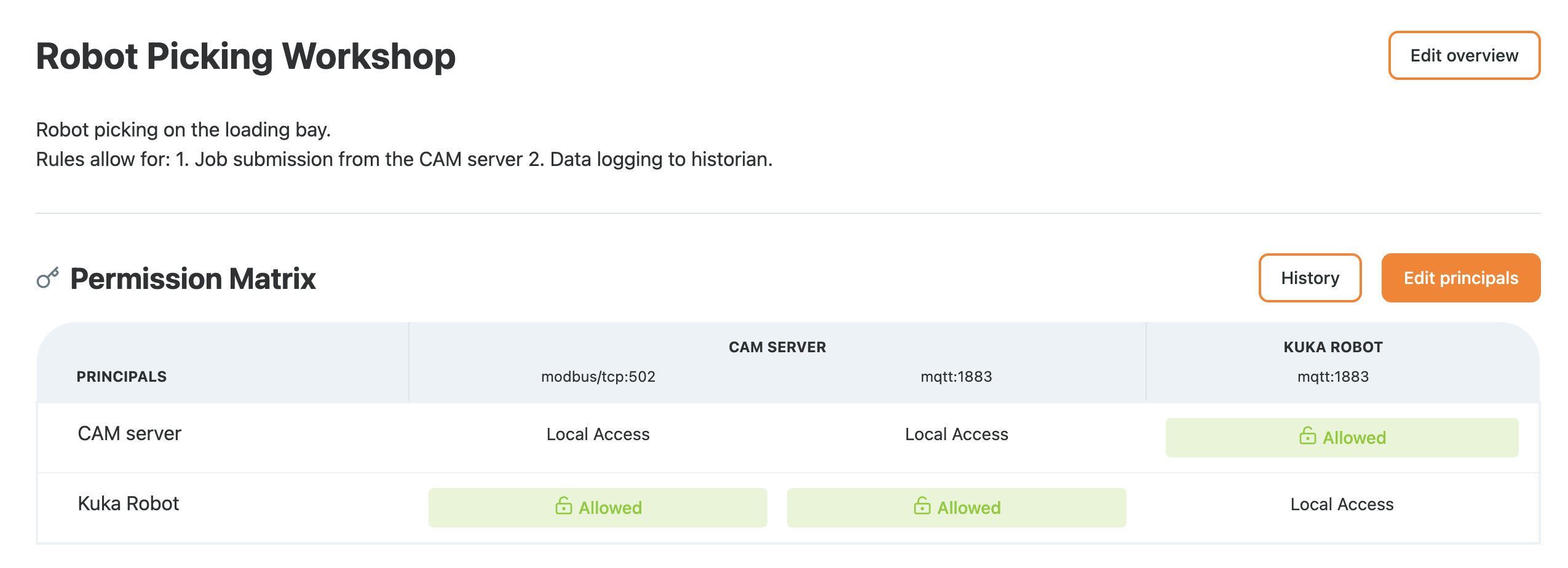
Principals are who or what an ACL grants access to: users, groups, assets, or whole zones. To add them to an enclave, open Enclaves → [Your Enclave] and click Add new principals above the Permission Matrix.
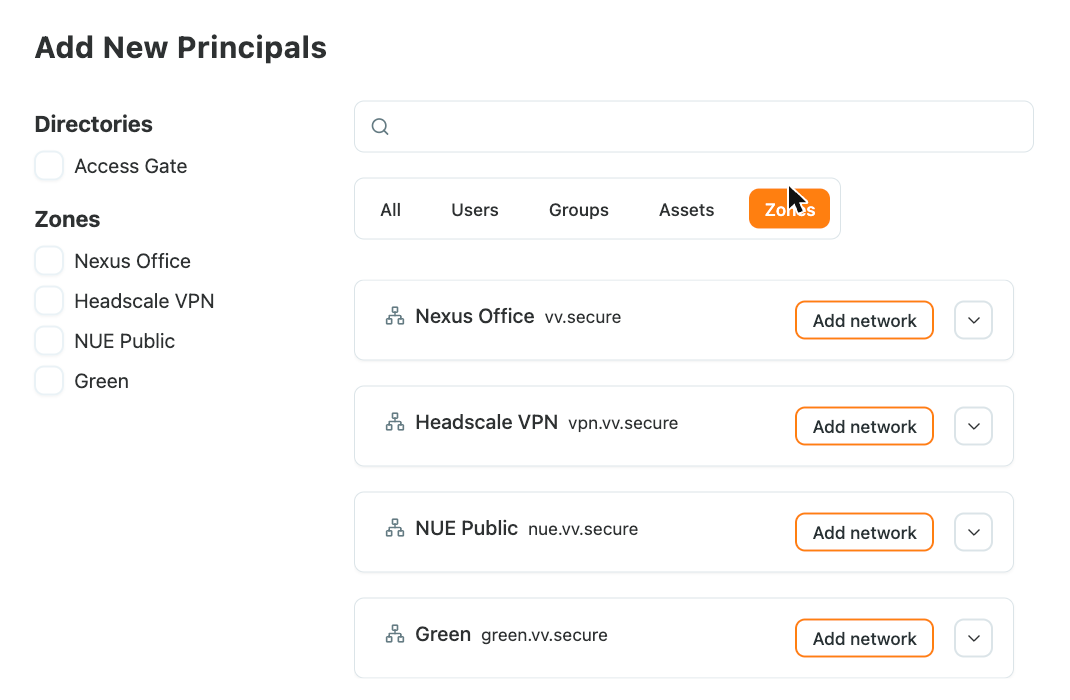
The Add New Principals window searches every principal in one place:
- One search box across users, groups, assets and zones, from every connected directory.
- Tabs to narrow the results: All, Users, Groups, Assets, Zones.
- Filters on the left, by directory (for example the Access Gate directory, or a synced Active Directory) and by zone.
- Add network on a zone adds the entire zone to the enclave in one step, instead of adding its machines one by one.
Changes Take Effect on Open Connections
ACLs are enforced in the kernel. When you change a rule, or remove a principal from an enclave, connections the rule no longer allows are closed, including sessions that were already open. This covers long-lived connections such as SMB sessions to a file share: once the maintenance task is done and the access is removed, the session ends.
Default Deny
Access Gate is default-deny: a session is rejected unless a matching allow rule exists. There is no implicit "members of the enclave can do anything", every protocol on every asset is an explicit grant.
This means first-time enclave setup feels strict on purpose. Plan on:
- Creating the enclave and adding members.
- Turning on traffic inspection to see what the members actually try to do.
- Translating observed flows into ACL rules.
The Quick start walks through this loop.
Changes Are Audited
Every ACL edit lands in the enclave's change history (see Viewing enclave change history) with the operator, timestamp, and before/after values. Changes to access-screen permissions are recorded the same way.
Recap
We wrote per-enclave ACL rules that grant a principal (user, IdP group, or asset) access to specific assets over specific protocols, on a default-deny basis.
Reach for this whenever you need fine-grained, group-backed control over who reaches what and how, scaling access decisions through your identity provider rather than per-user edits.