
Privileged Access Management in Access Gate is a browser-based Remote Access Scheme: a DBA, integrator, or support engineer opens a URL, authenticates, and gets a proxied session to a specific system. The session runs over the link that reaches the gate, including your VPN or 4G link. There is no standing credential and no SSH key distributed in advance. Each session is tied to a named person, time-bounded, and recorded.
What the Remote Access Scheme Covers
The scheme proxies admin-class protocols through Access Gate so the client device reaches the target system only through Access Gate:
| Protocol | Typical target | Client surface |
|---|---|---|
| RDP | Windows servers, engineering workstations | Browser, HTML5 renderer |
| SSH | Linux/Unix hosts, network appliances, jump hosts | Browser, terminal in-page |
| VNC | HMI panels, legacy workstations | Browser, HTML5 renderer |
| HTTPS | Admin web UIs, historians, BMS dashboards | Browser, iframe / redirect |
The target system sees a connection coming from Access Gate. The user sees a browser tab. The two never share an IP path.
Why Proxied Sessions Matter for OT and Hybrid Networks
| Legacy approach | Problem it creates | Proxied-session answer |
|---|---|---|
| Shared admin accounts | No identity-to-action mapping during investigation | Every action ties to an IdP user |
| Distributed SSH keys | Key sprawl, no revocation | No keys leave Access Gate |
| Jump host with VPN | One credential, broad blast radius | Per-enclave, per-protocol scope |
| Screen-share for vendor | No audit record | Full session log + timeline |
What the User Experience Looks Like
- The user opens a URL you publish (for example
acme.tr-sec.net/connect). - They authenticate through your Identity Provider (OIDC or SAML) or via a temporary user created in Access Gate.
- Access Gate lists only the systems their role can reach, per enclave.
- They click a system; the browser opens an RDP, SSH, VNC, or HTTPS session against it.
- At session end (explicit logout, timeout, or operator-triggered end-session), the connection drops.
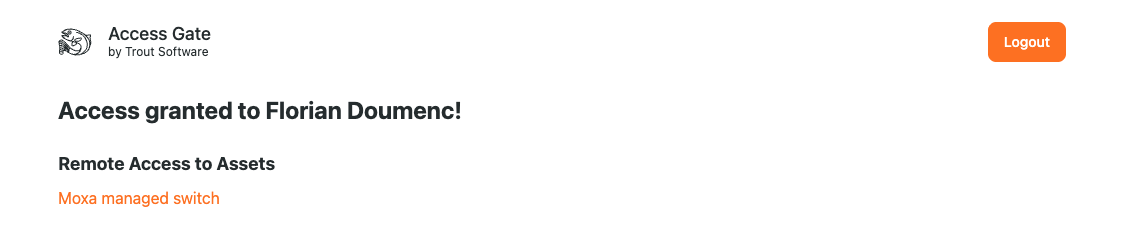
No client software. No credential handed to the remote user. No private route onto the network.
PAM Controls
For high-impact sessions, the same path layers on standard PAM behaviors:
- Identity-bound sessions: every action attributes to a named person, never a shared account.
- Just-in-time access: grant a role for a defined window; it revokes automatically.
- Per-session expiration: idle timeout + maximum session length, configurable per enclave.
- Operator end-session: any active session can be terminated from the admin UI.
- Full audit trail: connection, target, principal, protocols, and outcome land in the enclave change history and the log pipeline.
Setting It Up
1. Configure Remote Access Scheme for your asset
- Navigate to Assets → [Your Asset] →
- Click on the pencil icon, and then Edit network.
- Specify the Remote Access Schme & login information to use.
- Save.
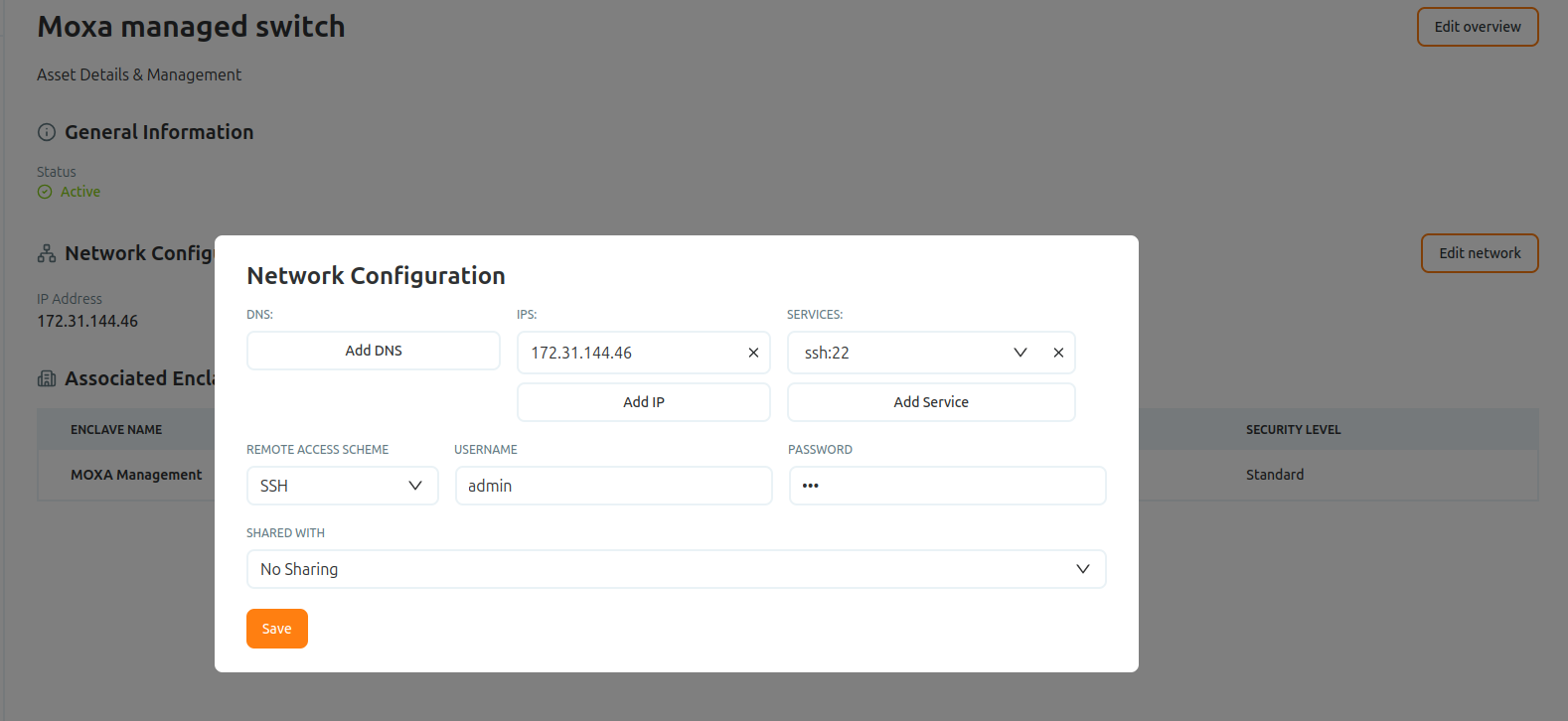
The information is stored on the Access Gate and encrypted at rest + transit. You avoid to share credentials to connect to a given system.
2. Enable the Remote Access Scheme on an enclave
- Navigate to Enclaves → [Your Enclave] → the flow you want to PAM
- Toggle Remote Access Scheme on.
- Save.
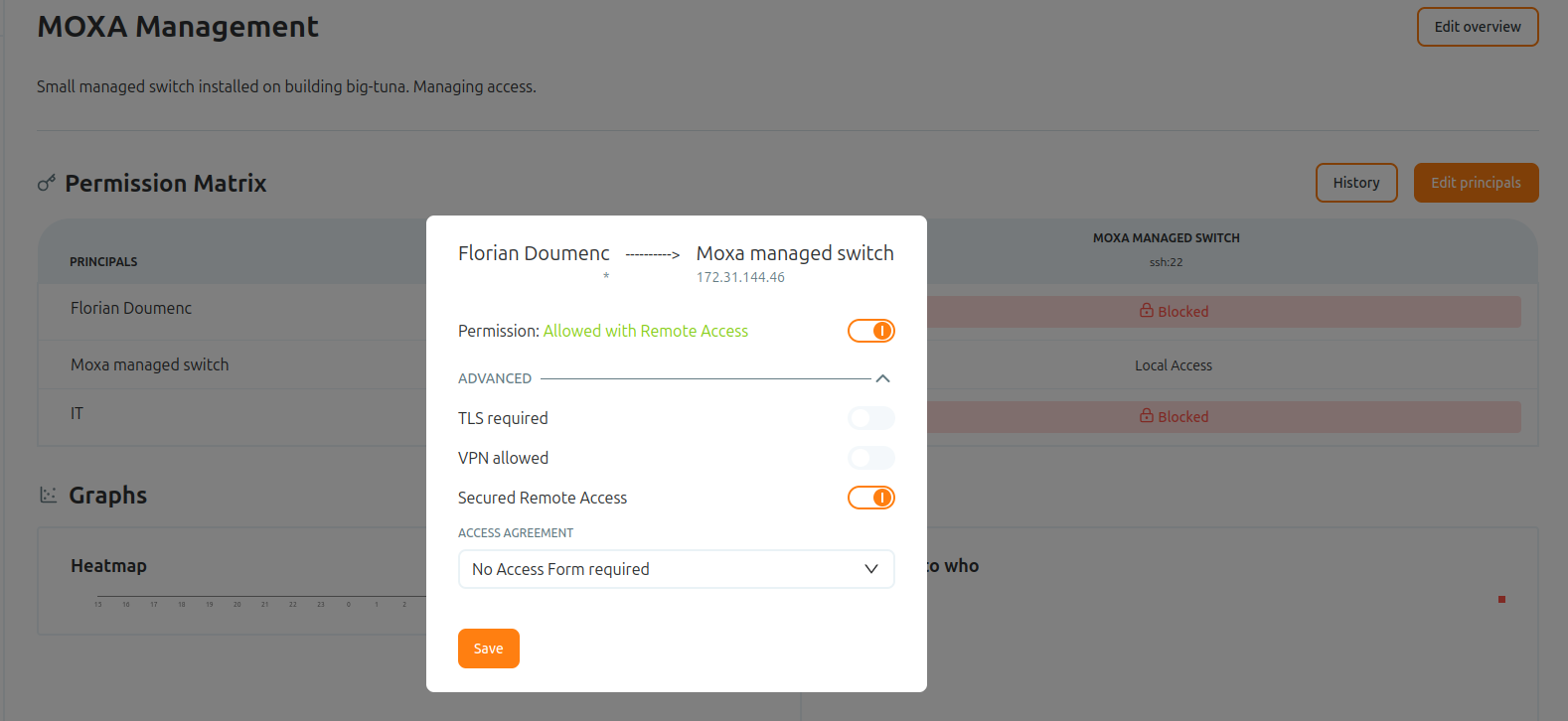
Only the protocols picked here are reachable through the proxy. The target system's other ports stay invisible from a session.
3. Grant just-in-time access (optional)
- Select an Access Agreement that will authenticate the visitor
- This access screen is configured to grant access for a period of time, and to leverage a specific Directory.
- Save.
At the cutoff time the entry is deactivated automatically; no operator action needed.
When to Use This vs Remote ZT Access
| Scenario | Reach for |
|---|---|
| Remote engineer needs HTTPS/Modbus/OPC to a set of enclaved systems | Remote Zero Trust Access |
| Vendor needs a one-off RDP onto a Windows server | Privileged Access Management (this page) |
| SSH on an industrial appliance for troubleshooting | Configure SSH Remote Access |
| Day-to-day application traffic from a remote laptop | Remote Zero Trust Access |
The two flows coexist, and you can enable both on the same enclave and let each user's role decide which one they actually get.
Recap
We configured a browser-based Remote Access Scheme that proxies RDP, SSH, VNC, and HTTPS to a target, with identity-bound, time-limited, and fully recorded sessions.
Reach for this for admin-class interventions, a vendor's one-off RDP onto a Windows server or SSH troubleshooting on an appliance, where you need just-in-time access and a complete session audit trail.