
You put Access Gate in front of your machines in four steps. Map your network from a short capture. Turn that map into an inventory and enclaves. Connect the appliance beside your router. Then switch traffic through it with one rule. Nothing changes on the machines, and removing that one rule undoes it.
| Step | What you do | Time |
|---|---|---|
| 1. Map your network | Record a capture and open it in the network analyzer | 15 minutes |
| 2. Create your inventory and enclaves | Name your machines, decide who reaches them | 30 minutes |
| 3. Connect Access Gate | Two cables, one dedicated VLAN, log in | 20 minutes |
| 4. Switch with one rule | Add one rule on your router | Under a minute |
1. Map your network from a capture
A capture (a .pcap file) is a recording of the traffic on your network. Access Gate builds everything else from it, so you never scan your machines.
- Record a few minutes of normal production, up to 500 MB. Plug a laptop into a mirror (SPAN) port on the switch your machines use, and record with Wireshark or
tcpdump. Use the machine switch rather than the core uplink: it is quieter and gives a cleaner map. The capture guide has the exact commands. - Open the capture in the network analyzer. It runs in your browser and the file is never uploaded. You see every machine, who talks to whom, where IT reaches into OT, and proposed zones.
- Export the map: Export, then Everything. It holds the list of your machines and the proposed zones, not your raw traffic.
2. Create your inventory and enclaves
Two things decide what Access Gate protects:
- The inventory is the list of your machines, each with a name you recognize: Line 2 PLC, Packaging HMI.
- An enclave is a group of machines plus the people and systems allowed to reach them: Line 2 cell, CUI systems.
If we preloaded your appliance, both are already there. Otherwise, connect the admin cable first (step 3) and build them in the console in a few clicks. Access Gate sees your machines from a copy of the traffic, a mirror port or NetFlow from your router: see Configure the monitoring port.
- Monitor shows every machine Access Gate sees. Register each one in Assets with Create Asset: give it a name and its IP address.
- In Enclaves → Create Enclave, name the enclave and click Save.
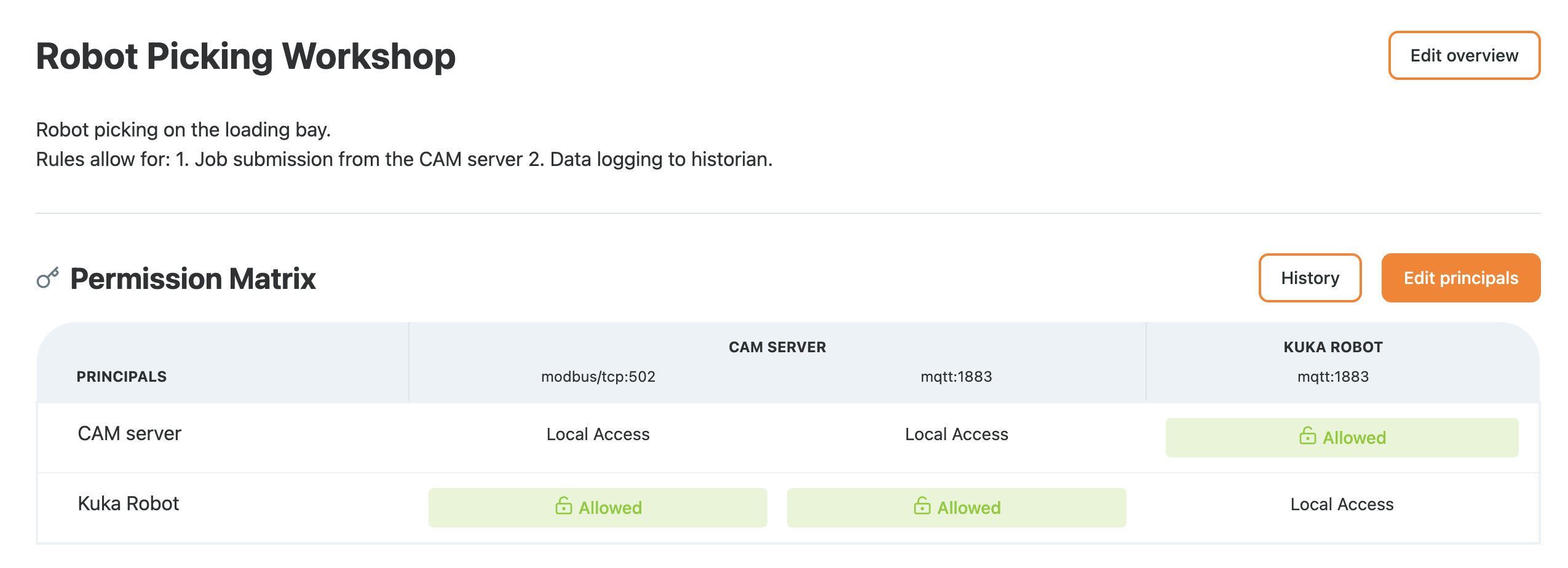
- Open the enclave, click Edit Principals, and add its machines and the users or groups who need them.
- In the table, click a Blocked tile and switch it on for each access you want to allow. Everything else stays blocked.
More detail: Build your asset inventory and Protect a machine with an enclave.
3. Connect Access Gate
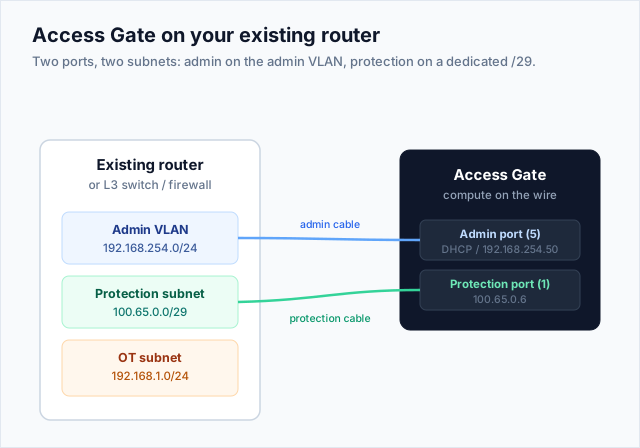
Access Gate sits beside your router or switch, not in the middle of your network. Plugging it in changes nothing for your machines.
You need two cables and two free ports on your router or switch:
- Admin cable: from your admin network to the Access Gate admin port (usually port 5). This is how you reach the console.
- Protection cable: from a small dedicated VLAN or subnet, for example
100.65.0.0/29, to the Access Gate protection port (usually port 1). Give your router100.65.0.1on it, and the gate100.65.0.6. - Add one route on your router: send
100.64.0.0/16to100.65.0.6. This range is where Access Gate gives each machine a twin address. Nothing uses it yet, so it changes nothing.
Then open the console:
- Browse to
https://followed by the admin port's address. It takes an address from your admin network over DHCP, or uses10.0.0.1after about a minute if there is none. - Accept the certificate warning, and log in with
admin/hello. - In Settings → Accounts, change the admin password and create your own user.
- Check Assets and Enclaves: your inventory and enclaves from step 2 are there.
The exact menus for your equipment: Cisco Catalyst, Cisco Meraki, Fortinet FortiGate, Ubiquiti UniFi, MikroTik.
4. Switch with one rule
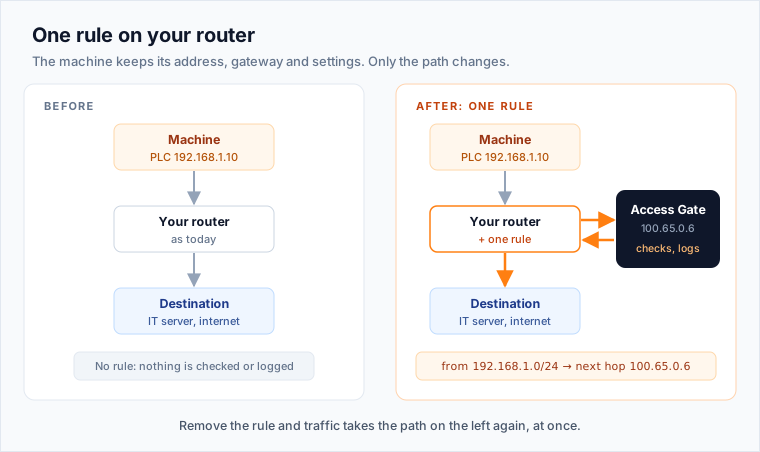
Now send your machines' traffic through Access Gate. One rule on your router does it for a whole subnet or VLAN: everything coming from that subnet goes to the gate first.
! Cisco example: everything from the machine subnet 192.168.1.0/24 goes to the gate
ip access-list extended MACHINES
 permit ip 192.168.1.0 0.0.0.255 any
route-map TO-ACCESS-GATE permit 10
 match ip address MACHINES
 set ip next-hop 100.65.0.6
interface Vlan1
 ip policy route-map TO-ACCESS-GATE
The machines keep their address, their gateway and their settings. Nothing is installed on them.
Check it works. From a machine, reach something it usually talks to, exactly as before. In the console, the flow now appears under its enclave.
Undo it. Remove the rule. Traffic goes back to how it was, at once.
At a large manufacturer in North Carolina, a running production line was moved behind Access Gate this way in under a minute, with one rule on the existing Cisco switch. Production kept running.
When the dry run shows the rules you expect, approve them. Access Gate then blocks everything you have not allowed.
What you have now
- An inventory of every machine on the network, named.
- Enclaves that say who reaches which machine.
- Every flow from that subnet going through Access Gate, logged, with nothing changed on the machines.
Next steps
- Your first three weeks: add users, remote access for vendors, and audit reports.
- Make users sign in before they reach a machine.
- Other ways to connect your machines, if you cannot add a rule on your router.
Troubleshooting
The console does not open
- Check both cables and the link lights.
- Use https://, not http://.
- Find the admin port's address in your DHCP leases, or try
10.0.0.1. - Make sure no firewall blocks port 443 between you and the admin network.
No machines appear in Monitor
- Check that the monitoring port receives a copy of the traffic (a mirror port, or NetFlow from your router).
- Check that the mirror covers both directions and a VLAN where machines are active.
- Look in Settings → Logs for errors.
A flow does not show up after the rule
- Check that the rule matches the right subnet and points to
100.65.0.6. - Check that the
100.64.0.0/16route from step 3 is in place: replies need it to come back. - Check that the machine's firewall, if it has one, allows the Access Gate address.