
Access screens enforce per-user, identity-backed authentication before anyone reaches a protected system, replacing shared credentials and static-IP trust with a browser login tied to your directory and a full audit trail.
If your users are already registered with an existing OIDC identity provider, they can use this method to get strong, per-user authentication to local nodes.
When to use access screens
Use access screens when:
- You need per-user authentication tied to a directory, not shared credentials or static IPs
- Access should revoke itself automatically after a preset timeout
- You need an audit trail of who authenticated, when, and to which system
- Users should authenticate in the browser before reaching an enclave
Prerequisites
Access screens rely on the secure OIDC protocol. They work with your OIDC identity provider, including Microsoft Entra ID, Active Directory, and Tailscale (Microsoft Entra ID is used in this how-to).
| Requirement | Details |
|---|---|
| OIDC identity provider | One OIDC directory configured: Microsoft Entra ID, Active Directory, or Tailscale |
| Directory synchronization | Users synchronized to Access Gate. See Synchronize user directory (Entra ID) |
| TLS certificates | Valid TLS certificates installed on Access Gate |
| Secure Twin Interface | The interface connecting Access Gate to your identity provider. An on-premise IdP (OIDC or LDAP) needs LAN reachability only; a cloud-hosted IdP needs WAN access |
| DNS entry | An A or CNAME record pointing to the Secure Twin Interface IP (often 100.65.0.6), so users reach the form at a friendly URL such as https://auth.{your-domain}/access_form?id=123456 |
Creating a new screen
Under the Access Screens menu, use the Create template feature to create a new screen.
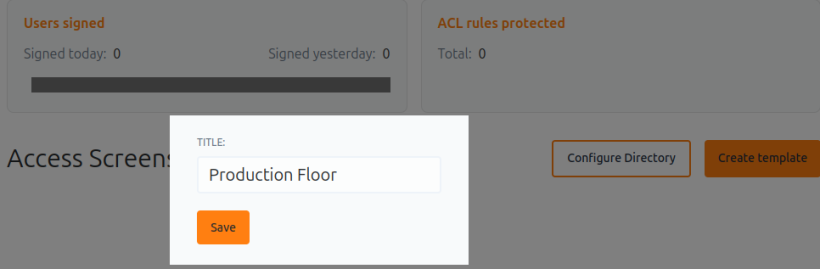
Click on the newly created entry, to access the text editor. This is a good place to remind users of the terms and conditions (policies) governing access to your network.
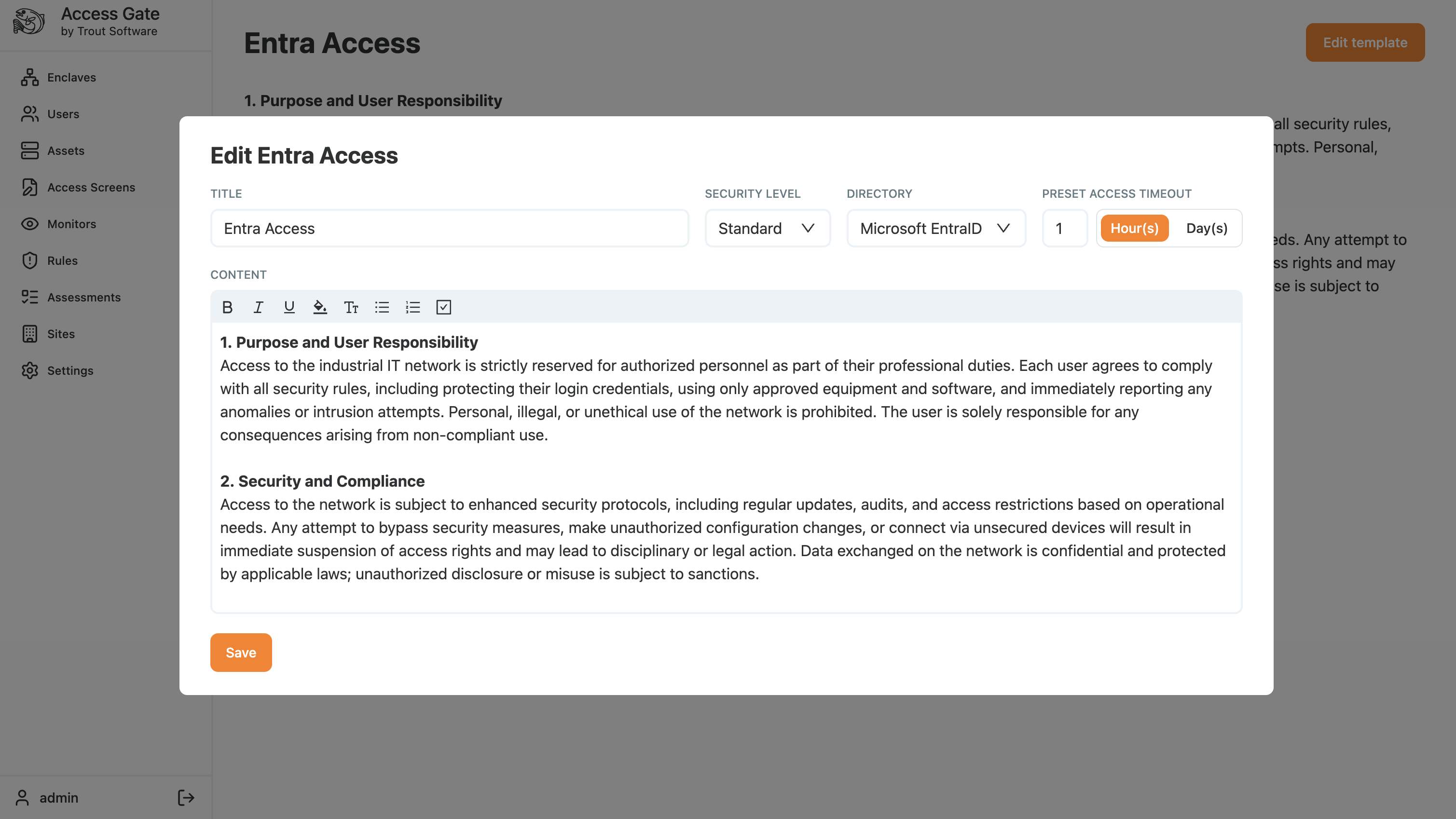
A few settings you can control in an Access Screen:
- Security Level: the protection tier this access screen applies to, Low, Medium, or High.
- Directory: which OIDC directory it uses to authenticate users (Microsoft Entra ID, Active Directory, or Tailscale).
- Preset Access Timeout: how long a user's access stays authorized before it is automatically revoked and the user must re-authenticate. Presets are 15 minutes, 1 hour, or 8 hours. This is what lets the network "harden" itself again once an access is no longer needed.
| Preset timeout | Typical use |
|---|---|
| 15 minutes | High-security enclaves, such as CUI or SCADA control systems |
| 1 hour | Standard engineering and development access |
| 8 hours | Continuous OT operations and monitoring shifts |
Back to the access screens list, copy the URL of the access screen just created. Share it with users who need to authenticate with Access Gate.
User Flow
- A user opens their browser and visits
https://auth.{your-domain}/access_form?id=123456 - The Access Screen loads and the user accepts the policy set for this access screen.
- The user is redirected to the Microsoft Entra ID authentication portal to authenticate.
- Once approved, the user is redirected to the callback URL
https://auth.{your-domain}/access_authorize

Access is granted or denied based on the workflow outcome, and an audit trail is recorded.
If the request is approved, the user's IP is automatically added to the proxy and authorized for the duration specified in the access screen. This happens in the background. The user can then continue their normal workflow: connecting to applications, databases, and other services,... while the enclave access rules are fully enforced.
Example log
Recap
We built an Access Screen tied to your OIDC identity provider, so users authenticate through the browser before their IP is granted enclave access for a preset timeout.
Reach for this when you need per-user, identity-backed authentication and an audit trail in front of protected systems, instead of trusting an IP or a shared credential.
| Aspect | Outcome |
|---|---|
| Authentication | Per-user, identity-backed via your OIDC provider |
| Access duration | Configurable preset timeout, then automatic re-authentication |
| Revocation | Automatic: the user's IP is removed from the policy when the timeout expires |
| Audit trail | Every login attempt logged with timestamp, principal name, principal IP, and rule |
| Use instead of | Static-IP trust or shared credentials in front of protected systems |