
For diagnosing and resolving system issues, Access Gate offers two primary tools:
- Direct access to real-time system logs
- The ability to export diagnostic information
Viewing System Logs
Access Gate’s internal logs are accessible via the “Settings > Logs” menu.
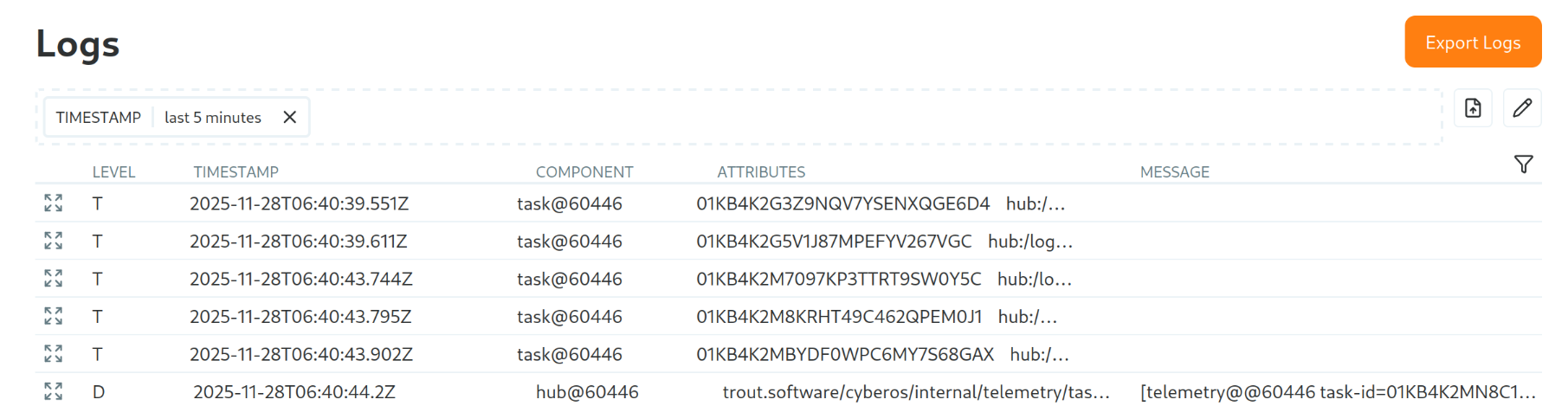
Log view from the Access Gate interface
By default, the widget displays only the most recent 5 minutes of events, ensuring you focus on the latest activity while maintaining performance. You can adjust the time range as needed for deeper analysis.
Exporting Diagnostics Information
If the information displayed on screen is not sufficient, or if you need to share details (for example in a support request), use the “Export Diagnostics” button on the page.
This generates a `.zip` file containing detailed logs and additional system information, which is downloaded to your local machine.
Recap
We viewed real-time system logs under Settings > Logs and exported a diagnostics .zip with detailed logs and system information. Reach for this when troubleshooting an issue or attaching diagnostics to a support request.