
The TLS protocol provides a security tunnel on top of any conversation over the network. It is a mature, well-established protocol for security, and most modern industrial protocols offer a TLS option. Unfortunately, not all end devices support TLS encryption, and certificate management is often too onerous to be widely deployed in facilities.
Access Gate has built-in capabilities to create transparent tunnels over critical assets, which are especially useful to expose a device over a larger network.
Prerequisite
Access Gate should be installed and both its Admin and Secure Twin port configured. You should also have a client compatible with TLS.
Most protocols can be secured using TLS, but we will focus in this how-to on HTTP, as a widely available option. We are going to secure access to the administrative interface of a Linksys managed router, which lacks encryption (and therefore is vulnerable to password sniffing).
Assets in Access Gate
The managed switch and the clients should be registered as assets, on the right vnets (they do not need to be on the same vnet, as long as both are managed by Access Gate.).
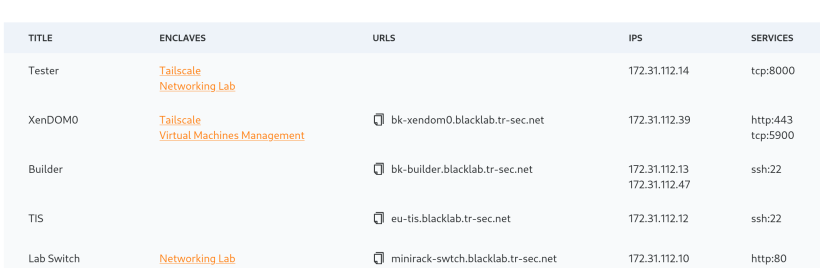
With both devices (Lab Switch and Tester in this example) registered and added to the same enclave, we need to set up TLS encryption.
Managing TLS certificates
Leveraging Access Gate native PKI
By default, Access Gate runs a PKI. You can head to Settings -> PKI Management, and click Download TLS certificate. This certificate can then be installed on your machine to handle secure tunnels.
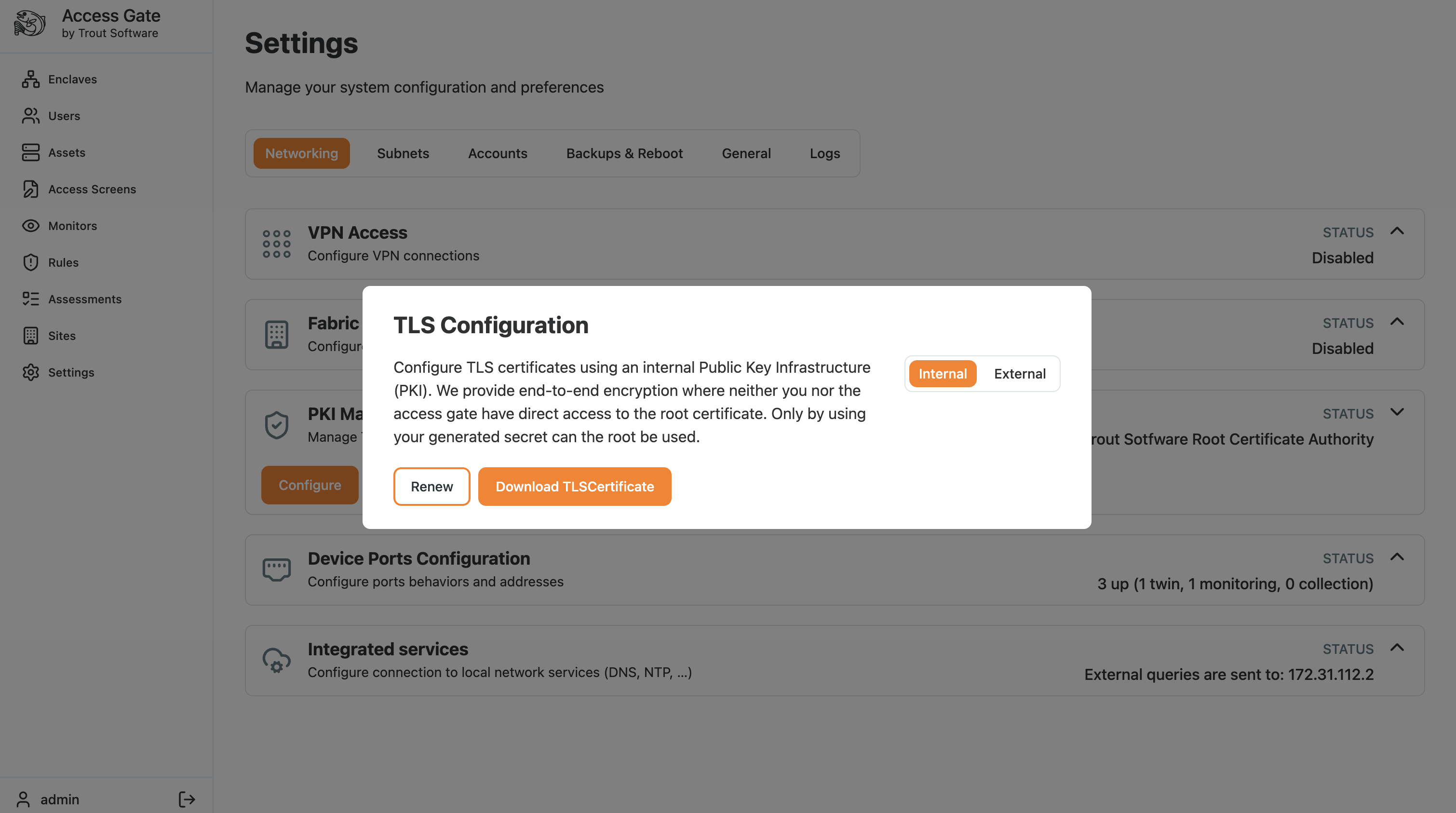
Generating a TLS intermediate certificate
Access Gate needs certificates to create the TLS tunnel. For added security, Access Gate actually manages a two-level certificate list:
- an intermediate certificate is signed by your certificate authority, and never leaves the device
- terminal certificates are generated on the fly thanks to the intermediate certificate, and sent to devices on the network for secure communication establishment.
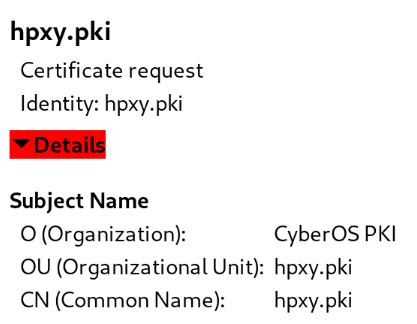
TLS tunnels are enabled in the Settings > Networking page. Click on “Generate CSR” (CSR = certificate signing request) to obtain the signing document, and sign it with your root authority. Upload the resulting intermediate certificate with the “Upload SCA”.
Mandating encryption for access
Back to the Enclave page, Allow access and select the more advanced option “TLS only”. The display updates to reflect your choice.
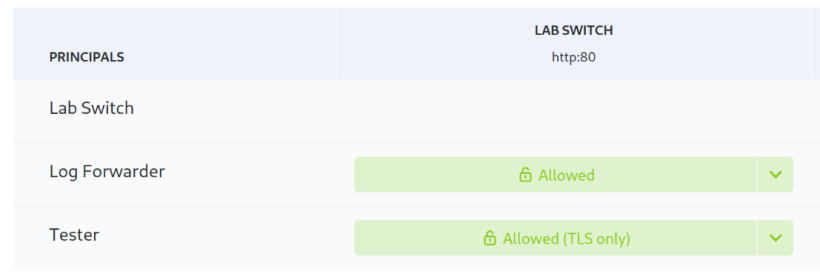
At this point, TLS is all set and ready for use, for example navigate to the web page and check the lock sign on your browser bar to check.
Supported cipher suites
The Access Gate TLS proxy negotiates a curated set of cipher suites, chosen to strike a balance between modern, secure algorithms and wide device support. The suites are grouped by TLS protocol version below. All suites listed are built on AES (FIPS 197) and validated cryptographic algorithms.1
TLS 1.3 cipher suites
TLS 1.3 only standardizes AEAD suites with ephemeral key exchange, so every negotiated session has forward secrecy by default.
| Cipher suite | Encryption | Forward secrecy |
|---|---|---|
TLS_AES_128_GCM_SHA256 | AES-128-GCM | Yes |
TLS_AES_256_GCM_SHA384 | AES-256-GCM | Yes |
TLS 1.2 cipher suites
For TLS 1.2, prefer the ECDHE suites, they provide perfect forward secrecy (PFS), meaning a compromised long-term key cannot be used to decrypt previously captured traffic. The static-RSA suites are offered only for legacy devices that cannot negotiate ECDHE; they do not provide forward secrecy.
| Cipher suite | Key exchange | Forward secrecy |
|---|---|---|
TLS_ECDHE_ECDSA_WITH_AES_128_GCM_SHA256 | ECDHE | Yes |
TLS_ECDHE_RSA_WITH_AES_128_GCM_SHA256 | ECDHE | Yes |
TLS_ECDHE_ECDSA_WITH_AES_256_GCM_SHA384 | ECDHE | Yes |
TLS_ECDHE_RSA_WITH_AES_256_GCM_SHA384 | ECDHE | Yes |
TLS_ECDHE_ECDSA_WITH_AES_128_CBC_SHA256 | ECDHE | Yes |
TLS_ECDHE_RSA_WITH_AES_128_CBC_SHA256 | ECDHE | Yes |
TLS_RSA_WITH_AES_128_GCM_SHA256 | Static RSA | No |
TLS_RSA_WITH_AES_256_GCM_SHA384 | Static RSA | No |
TLS_RSA_WITH_AES_128_CBC_SHA256 | Static RSA | No |
Troubleshooting steps
TLS encryption is very sensitive to correct certificate configuration, you need to make sure your certificate authority has:
- Enough time validity (usually 10 years) to sign the certificate request
- The correct depth to issue terminal certificate (it should be at least 2: one for the intermediate, and one for the final certificate)
- If you are using domain limitations on the certificate authority (a good practice!), check that all vnets names are covered by the domain limit
- The
By default, Access Gate TLS proxy is configured to strike a reasonable balance between modern (and secure!) algorithms, and wide support. If you have specific requirements (very old device, NIST compliance), please reach out to your sales contact to discuss more advanced licensing levels.
Recap
We provisioned PKI certificates, wrapped an enclave's traffic in a transparent TLS tunnel, and set the access policy to "TLS only".
Reach for this when an asset speaks a plaintext protocol or lacks native encryption, and you need to expose it securely across a wider network.
Footnotes
-
All cipher suites above use FIPS-approved algorithms (AES per FIPS 197, key establishment per NIST SP 800-52). FIPS-validated cryptographic modules are available under advanced licensing, see FIPS Validated Encryption for the full reference, or contact your sales representative. ↩