
Access Gate ships with a built-in Tailscale client. Tailscale is only one of several ways to reach an Access Gate. Access Gate is connectivity-agnostic: it sits behind whatever already reaches the site, a routed network, a private WAN or MPLS backbone, or an encrypted VPN such as IPSec, OpenVPN, or WireGuard, always enforcing access locally per enclave. See VPN and WAN Connectivity Options for the full picture. The built-in Tailscale client is the lowest-friction of these, since Access Gate joins the tailnet itself, and it is the option documented step by step below, so that remote users, remote sites, and Access Gate itself share a secure mesh overlay without firewall changes or recabling.
For the access model itself (who may reach which asset, and how the session is brokered and recorded once the mesh path exists), see secure vendor remote access to OT on top of your VPN.
This guide covers the full Tailscale-on-Access-Gate setup: creating the tailnet, configuring the IP pool, granting OAuth API access so Access Gate can read tailnet state, syncing assets and users back to Access Gate, and granting enclave access over the overlay.
Set up your Tailscale tailnet
If you do not already have a Tailscale account, go to tailscale.com to create one. The friendly built-in menu will guide you through the steps to create your account, you might want to stop as soon as the screen shows to connect devices.
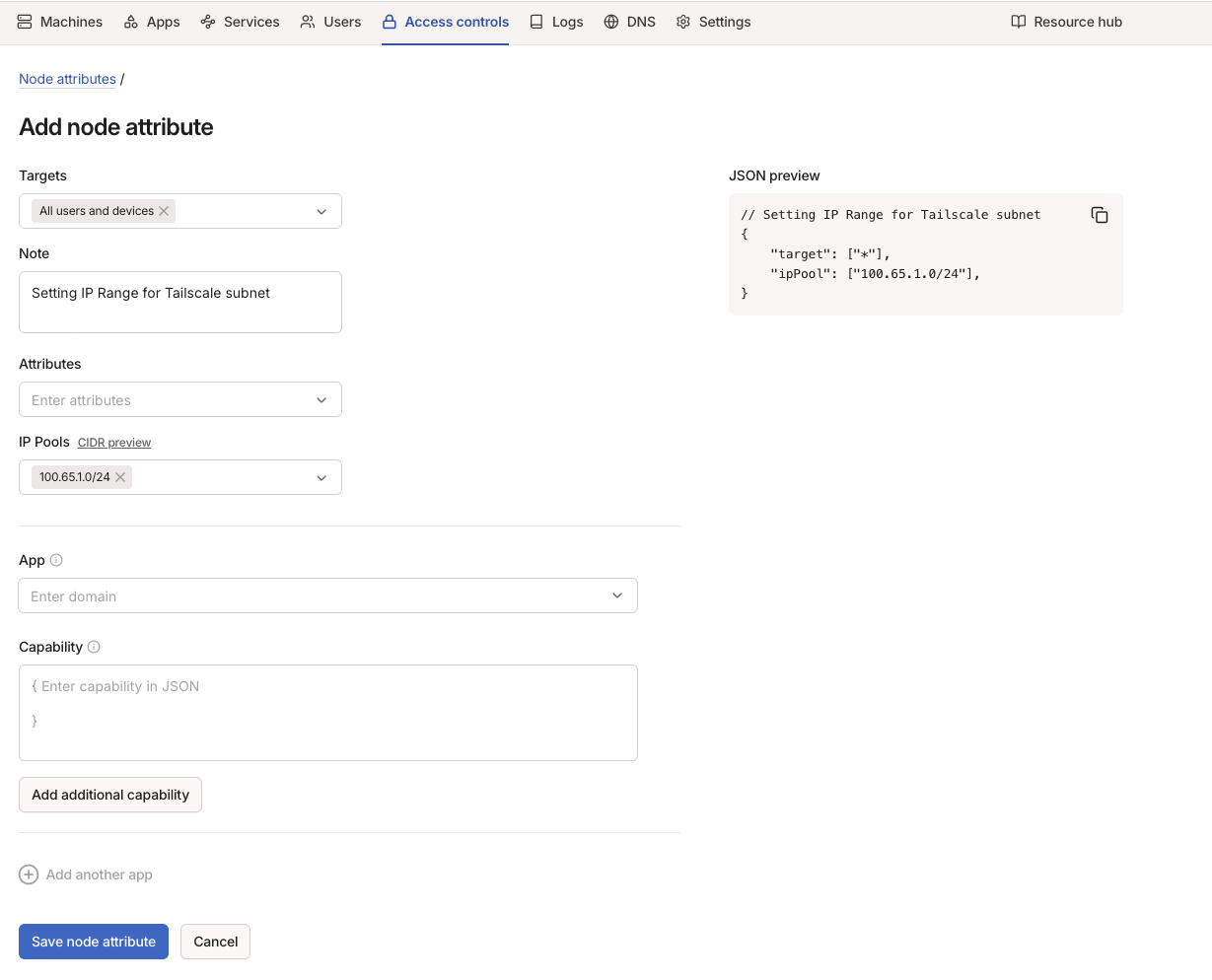
Set up Tailnet IP address range(s)
Every machine connected to Tailnet is assigned an IP address. To control the address pool from which these addresses are assigned add to the Access controls configuration file
"nodeAttrs": [
  { "target": ["*"], "ipPool": ["100.100.0.0/16"] }
]
and click Save to save and apply. Optionally, specify different pools for different user groups
"nodeAttrs": [
  { "target": ["autogroup:member"], "ipPool": ["100.100.1.0/24"] },
  { "target": ["autogroup:admin"], "ipPool": ["100.100.2.0/24"] }
]
To change IP address of already connected machine go to Machines section -> machine options (three dots on the right of the machine info row) -> Edit machine IPv4, enter an available IP from the desired range and press Update IP button.
From the UI, you can achieve this in Access Controls > Node Attributes.
Set up auto-approval for newly connected machines
By default, each newly added machine is auto-approved to join the Tailnet. It is optional (and safer) to alter this policy and require manual approval for each new machine. To enable that go to Settings -> Device management and set Device Approval to On.
After that each new machine added to Tailnet will appear in the Machines section with "Needs approval" label, and it needs to be manually approved by clicking the machine options (three dots on the right) and selecting Approve. From the UI, you can achieve this in Access Controls > Auto approvers.
Set up auto-approval for advertised (shared) routes
When a newly connected machine advertises (shares) routes to be made accessible via Tailnet, these subnets need to be approved in Machines section -> machine options (three dots on the right) -> Edit route settings by enabling the checkbox next to particular subnets.
The subnet approval process can be automated by configuring auto-approval for specific user and specific subnets in Access controls configuration file
"autoApprovers": {
  "routes": {
    "100.64.0.0/24": ["autogroup:member"],
    "100.64.0.0/10": ["autogroup:admin"]
  }
}
Set up machine key expiry
Each machine connected to Tailnet is assigned with a key that is by default valid for 180 days. After that the key expires and the machine needs to be re-authenticated.
The key expiry can be disabled per machine for trusted machines (including AccessGate) in Machines section by clicking machine options (three dots on the right) -> Disable key expiry.
Set up OAuth API access to Tailnet configuration
To allow Access Gate to read tailnet state (devices, users, DNS, and routes) and keep assets and access in sync, an API access has to be configured and the obtained ID and Secret have to be entered into Access Gate configuration.
To enable OAuth API access to the tailnet, in Tailscale:
- In Tailscale, go to Settings -> Trust Credentials -> OAuth clients
- Enter Description (e.g. AccessGate API client)
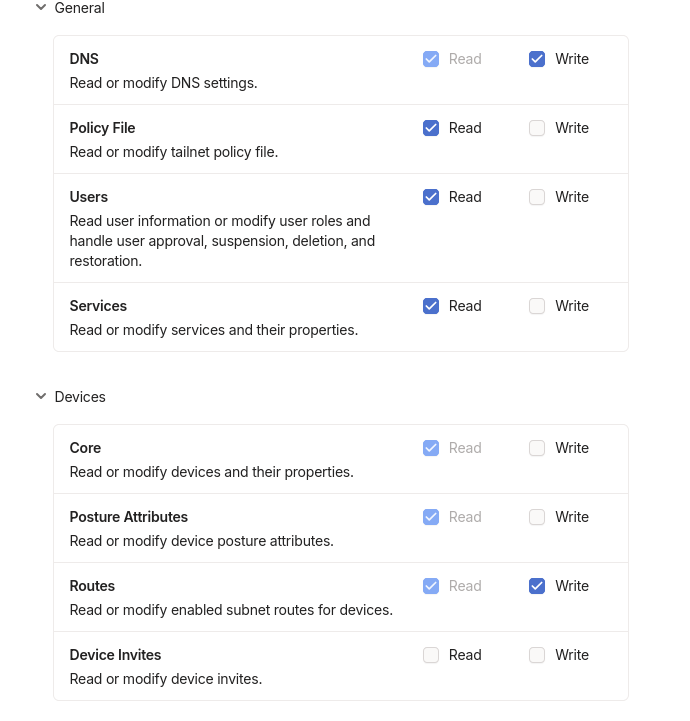
- Grant the following scopes:
- DNS: Read and Write
- Policy File: Read
- Users: Read
- Services: Read
- Devices (Core): Read
- Posture Attributes: Read
- Routes: Read and Write
- Click Generate credential
Copy and store safely the displayed OAuth client credentials (ID and Secret), and enter them to the AccessGate via AccessGate Web administration -> Settings -> Networking -> VPN Access -> API Credentials.
As of v26.6, you can update or replace these API credentials at any time from the same screen. This is useful if you need to rotate the OAuth client or reconfigure the integration without rebuilding it.
Sync Assets and Users from Tailscale
In Access Gate, click Authenticate.
After a successful connection, you will see the following screen.

Back on the Tailscale side, update your Access controls tab to grant access to members (or other source of your choice) to the subnet advertised and routed by the Access Gate:
For example:
// access Access Gate LAN
{
  "src": ["autogroup:member"],
  "dst": ["100.64.144.0/24"],
  "ip":  ["*"],
},
Access local Assets
You can now head to Enclaves, and grant access to the Assets and Users you want. To access them, simply use the IP or url display in the Assets tab. The magic happens in the background :)
Resolve names across the tailnet (DNS)
As of v26.6, DNS resolves in both directions: a machine on the tailnet can resolve assets behind Access Gate, and local assets can resolve tailnet hosts. To resolve local hostnames from a Tailscale client, add Access Gate as the nameserver for the relevant domains in Tailscale under DNS > Nameservers (split DNS: restrict it to the domains Access Gate serves, so the rest of your DNS is unaffected).
Routing: reaching local subnets
Tailscale clients reach assets on a local network through the advertised routes described above (see Set up auto-approval for advertised (shared) routes). Access Gate advertises its local subnets to the tailnet; once those routes are approved, tailnet clients reach local assets by IP or hostname. Which users can reach which assets is still governed per enclave by identity and ACL. That access model is covered in Remote Zero Trust Access, which rides on this overlay. For most deployments this route-based approach is preferred over configuring Access Gate as a Tailscale exit node, which would send all client traffic through it.
Reverse-path drop
Reaching an OT device through the Access Gate: reverse-path drop
Symptom. A device advertised through the Access Gate (for example 100.64.144.50) is unreachable over Tailscale: nc or curl time out. A tcpdump on the gate side shows outbound SYNs with no replies. Taking the example of a FortiGate firewall, the flow trace shows the drop:
received a packet(proto=1, 100.127.0.34->172.31.144.50) from Trout Connect
func=ip_route_input_slow  msg="reverse path check fail, drop"
func=ip_session_handle_no_dst
Root cause. Packets reach the FortiGate carrying the client's raw Tailscale source IP (100.127.0.0/24, inside 100.64.0.0/10). The Access Gate does destination NAT (100.64.144.0/24 to 172.31.144.0/24) but not source NAT, so the FortiGate has no route back to the Tailscale range. Its strict reverse-path-forwarding (anti-spoof) check then drops the packet before it reaches the OT device. The device itself is healthy: nothing ever gets to it.
This sits at the end of the access chain, so rule out the earlier layers first. All four must be green:
- Tailscale ACL grant. A grant must list the subnet CIDR as
dst. Route approval (autoApprovers) is separate from route access (grants): approval alone does not distribute the route to clients. - Route in the client netmap. Run
tailscale status --json; the gate'sAllowedIPsmust include the subnet. - Tunnel to the gate.
tailscale ping <target>returns a pong. - FortiGate return path. The failure covered here.
Fix (preserves identity). Give the router a route back to Tailscale and a matching policy, so per-identity OT rules keep working. For example on a Fortigate appliance:
config router static
  edit 0
    set dst 100.64.0.0 255.192.0.0
    set gateway <Access Gate 'Trout Connect' IP>
    set device "<Trout Connect interface>"
  next
end
Then add a firewall policy from Trout Connect to OT, with source 100.64.0.0/10 and destination the target. With the route present, strict RPF passes, so there is no need to disable strict-src-check.
Recap
We connected Access Gate to a Tailscale tailnet: created the tailnet and IP pool, granted OAuth API access, synced assets and users back to Access Gate, enabled two-way DNS, and reached local subnets over approved routes. Reach for this to give remote users and remote sites a secure mesh overlay to local assets without firewall changes, recabling, or a Tailscale exit node.
Related
- Remote Zero Trust Access: the per-enclave, identity-checked remote-access model that rides on this Tailscale overlay
- Privileged Access Management: browser-proxied RDP/SSH/VNC admin sessions (a separate path, not over the overlay)
- Access control lists: scope which protocols each user can reach