
Access Gate can run a risk assessment against a recognized framework, scoped to a site. Controls that Access Gate already enforces are filled in automatically with live data; you complete the rest, then export the result as a PDF report.
1. Add the site
Create the site first and add the information that anchors the assessment: name, location, and the scope it represents. Everything that follows (the auditor, the enclaves in scope, the controls) is attached to this site, so it provides the context for the whole assessment.
You can add a site from the left menu, clicking on Sites.
2. Add a Cybersecurity Auditor
Add a contact on the site with the Cybersecurity Auditor role. This role lets the user run risk assessments for that site. Users are tied into your existing user inventory. See User Roles and Access Gate Access for managing users and roles (and Synchronize user directory if you authenticate against an external identity provider).

3. Create the assessment
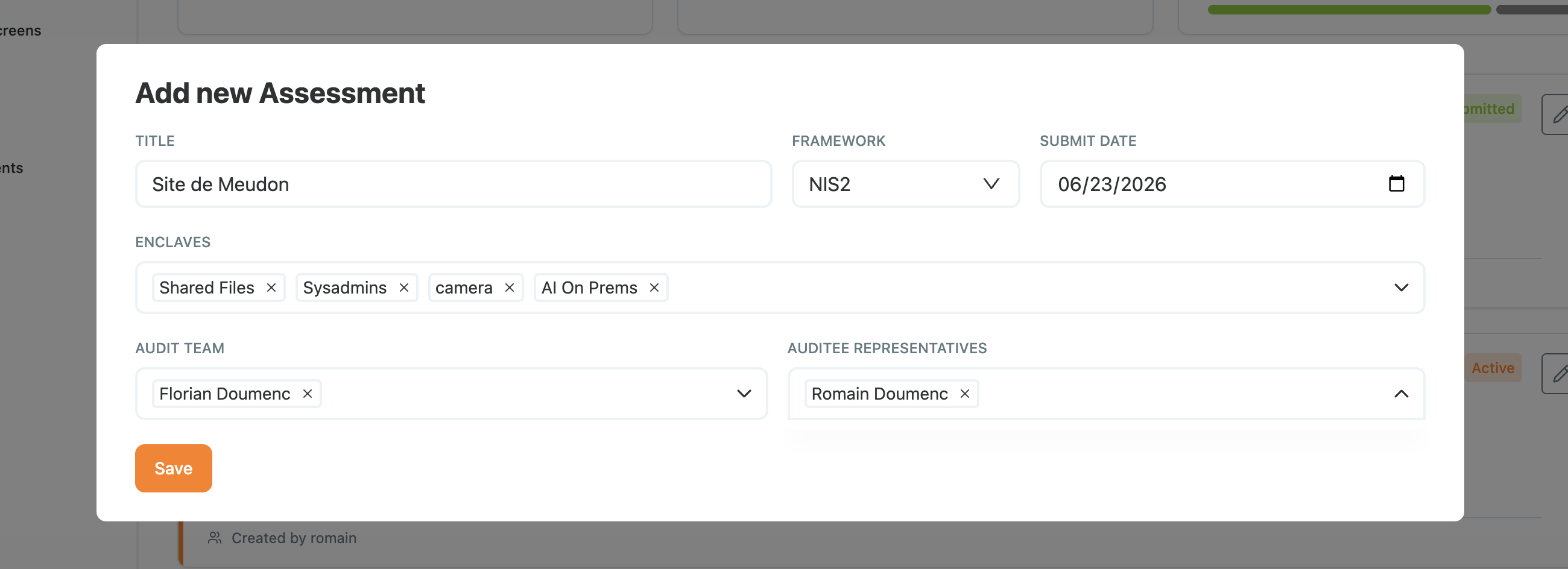
Head to Assessments and click Create. Enter the details for your assessment:
- the framework to assess against,
- the enclaves to include in scope,
- the audit team working on the topic.
4. Review and complete the controls
Clicking on the assessment loads the list of controls required by the chosen framework.
Controls that Access Gate covers directly (inventory of personnel and assets, logging of security events, MFA, least-privilege access, segmentation, and so on) are marked in place automatically, and the supporting data from Access Gate is attached to the report.
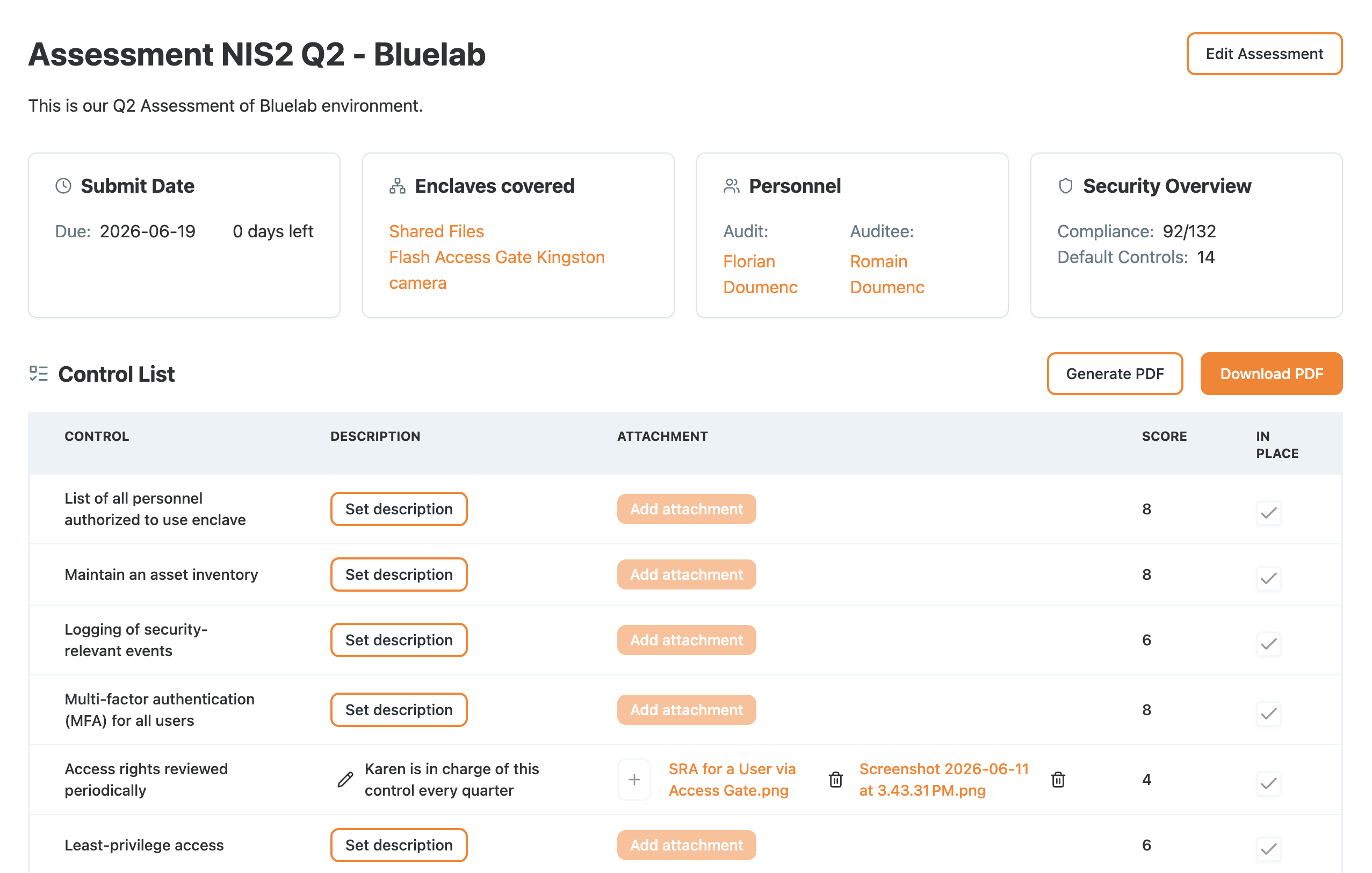
For the other controls, you can add a description and an attachment, then mark them in place. This information is attached to your reports and exports alongside the data Access Gate provides.
5. Submit and export
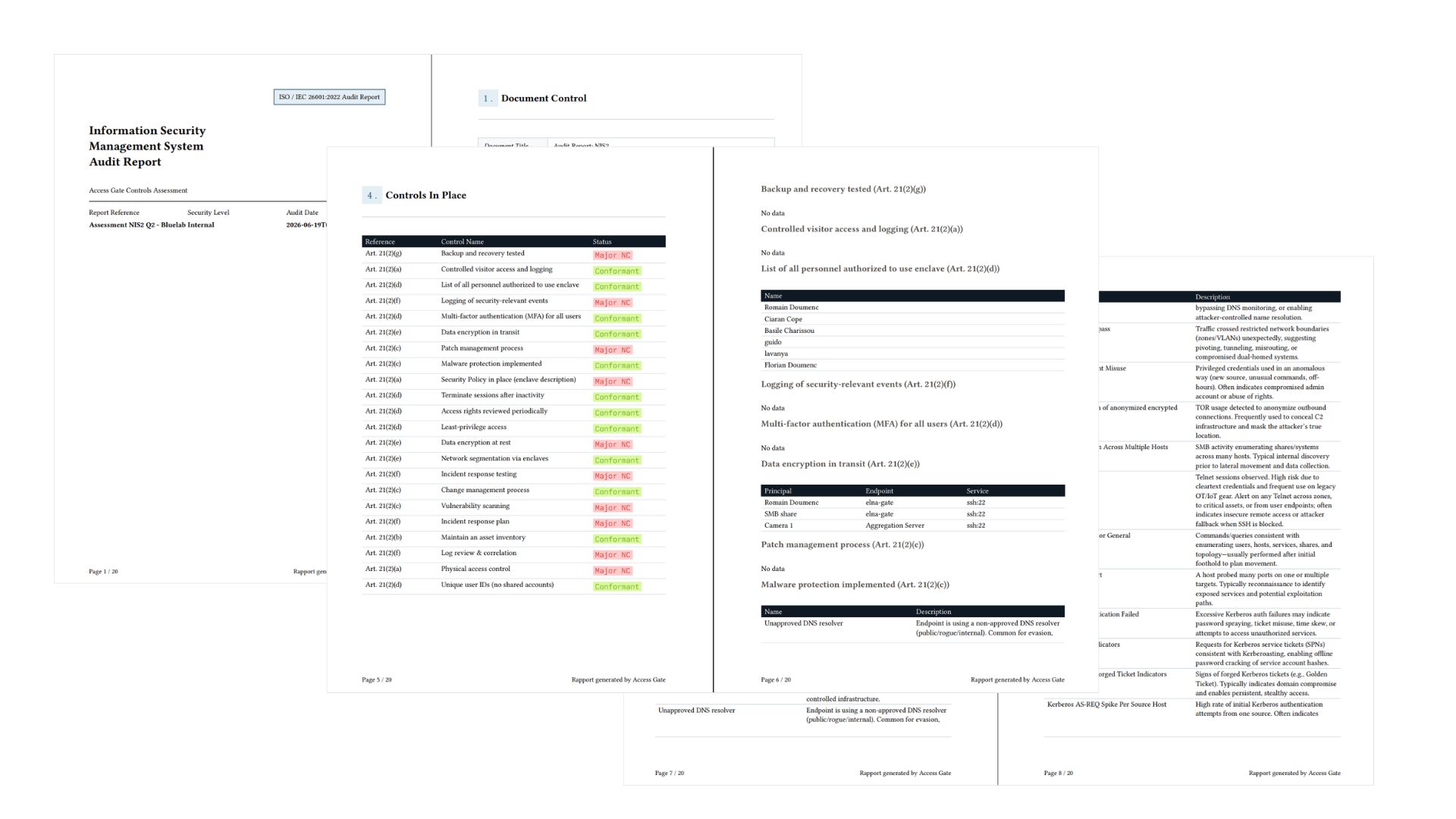
Once the assessment is finalized, scroll to the bottom and click Submit. You can then create a PDF report and export it.
Recap
You created a site with a Cybersecurity Auditor, ran a framework-based risk assessment that auto-filled the controls Access Gate already enforces with live data, completed the remaining controls, then submitted and exported a PDF report.
Reach for this when you need to demonstrate compliance against a recognized framework for a site, with the controls the gate enforces evidenced automatically and the rest documented in one place.