
Access Gate also lets you manage users with a simplified, built-in authentication system. The core use cases are:
- Deploy a lightweight authentication system in OT environments that do not have one.
- Extend an existing third-party authentication (such as Entra ID) to grant access to temporary users or vendors.
Create a user
Head to Users and click Create user. Enter the information for that user.

The user then appears in your user inventory, with the directory shown as Access Gate.

Edit a user
Clicking the pencil icon lets you edit the information for that user.
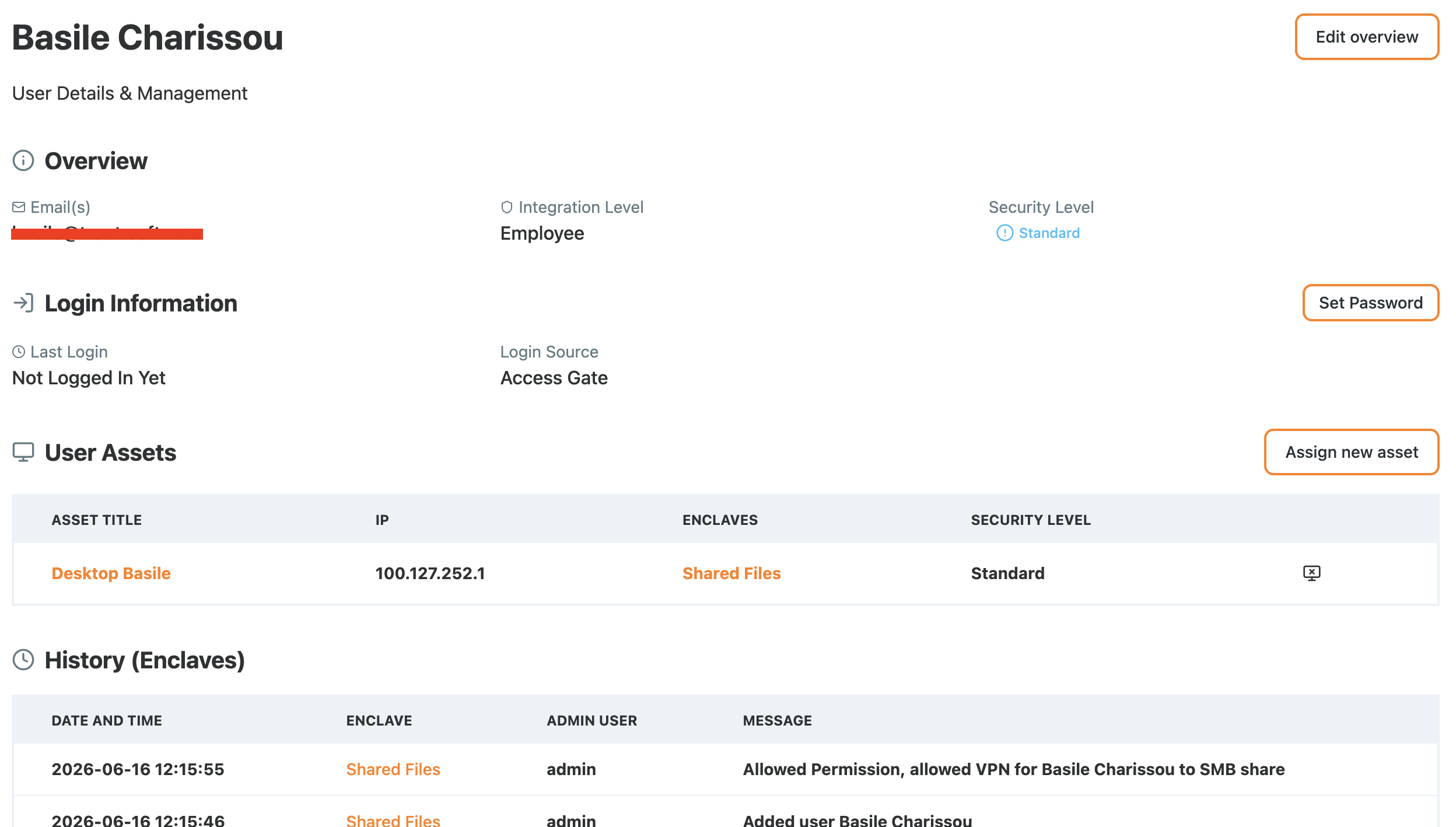
You can associate devices and roles, so the user can run a security audit (see Creating and exporting a risk assessment report) or get access inside enclaves (see Protecting an asset with enclaves).
For authentication, the Set Password button lets you set a password for the user.
Authenticate with an access screen
Head to Access Screens and create a new access screen. Make sure the Directory field is set to Access Gate. See Authenticate users with access screens for the full access-screen setup.
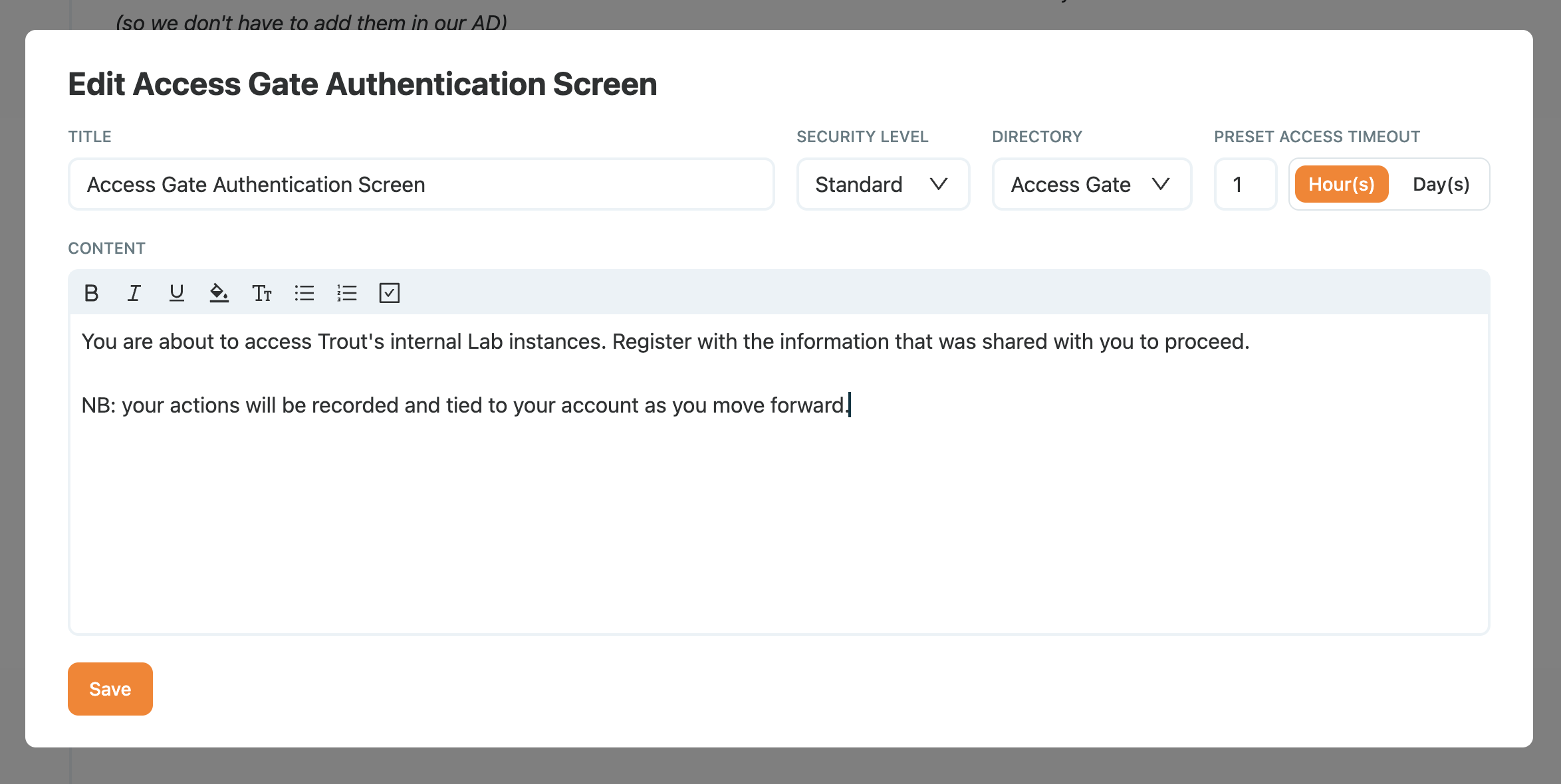
Copy the ID of the access screen and serve it on your overlay port (and URL).
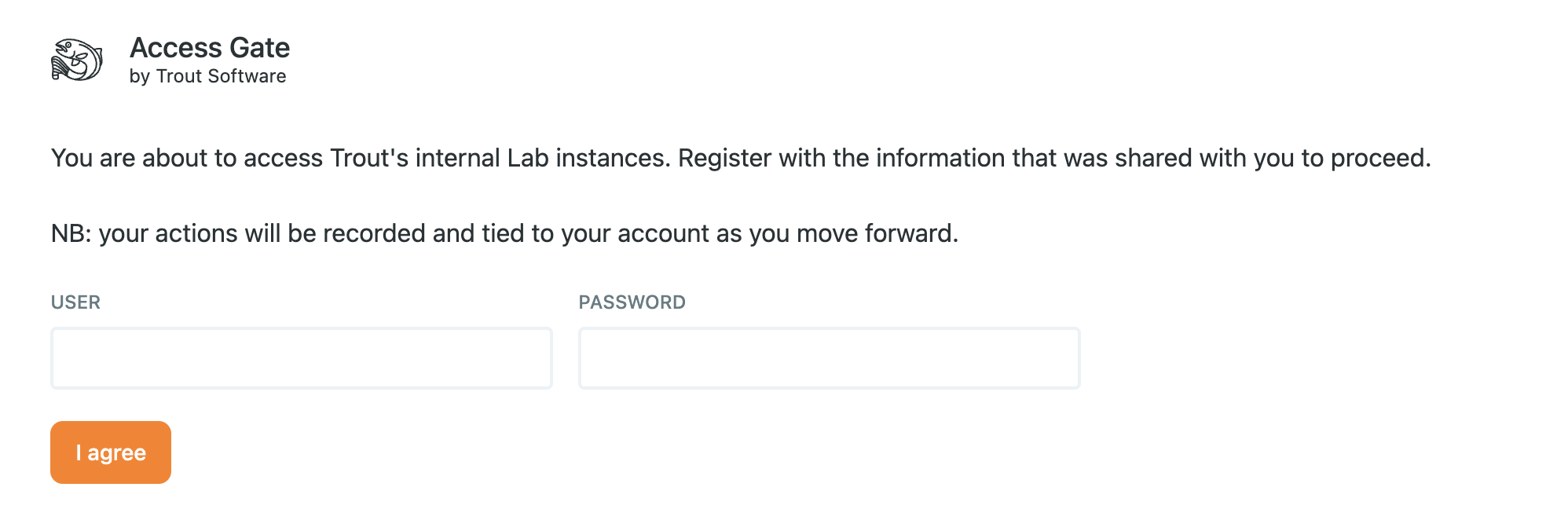
As a visitor, users see a page like the one below and authenticate themselves to gain access for the duration of the session you set in the access screen.
Recap
We created a user directly in the built-in Access Gate directory, set a password, and authenticated them through an access screen, with no external identity provider involved.
Reach for this when an OT site has no authentication system of its own, or to extend an existing identity provider with temporary access for vendors and short-term users.