
Most industrial gear ships a web interface, a PLC's built-in HMI, a drive's configuration page, a building-management dashboard. Many of them speak plaintext HTTP on port 80, 8080, or similar, with no real authentication, and the ones that do offer HTTPS often serve an expired or self-signed certificate the browser refuses. Access Gate puts identity and encryption in front of these interfaces without touching the device. Two decisions shape the setup: how TLS is terminated, and whether a login sits in front of the app.
How the gate secures a web interface
Access Gate is a protocol-aware proxy: the browser connects to the gate, the gate applies identity and policy, and the gate connects onward to the device. Because the session is terminated at the gate, it can present a clean, trusted certificate to the user regardless of what the device does on its side, and it can require authentication before the app is ever reachable. The device stays exactly as it is, plaintext HTTP and all.
Decision 1: how TLS is terminated
There are three useful modes, in decreasing order of how common they are for industrial gear:
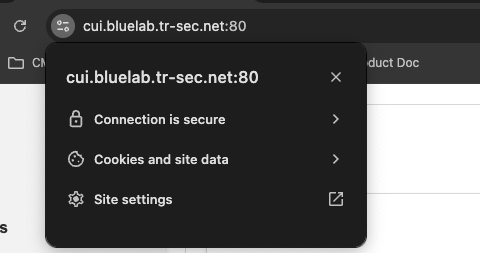
- Terminate and forward plaintext. The browser gets HTTPS to the gate; the gate speaks the device's native HTTP on the protected side. This is the default for a device that only speaks plaintext HTTP. Credentials and session cookies stop crossing the network in the clear, and the device needs no cryptographic capability of its own.
- Terminate and re-encrypt. The device already serves HTTPS (often with a self-signed certificate). The gate connects to it over HTTPS on the protected side, and users still see the gate's trusted certificate, not the device's. Use this when the protected segment must also be encrypted.
- Passthrough. The gate enforces reachability and identity but does not terminate TLS; the browser negotiates TLS directly with the device. Use this only when the device's own certificate is already trusted.
Decision 2: does a login sit in front?
- Via Access screen. Require the user to authenticate at an access screen before the web app is reachable. This is the right default for any HMI with weak or shared device-level login, it puts real identity in front of a page that has none.
- Pass through. Skip the screen when the app has its own adequate auth and you only need encryption and network control.
Set It Up
- Add the asset to an enclave, see Protecting an asset with enclaves.
- In Enclaves → [Your Enclave] → Access Control, add an
allowrule. - Pick the principal (user, IdP group, or role) and the asset(s), then save.
- Choose the TLS mode (terminate, re-encrypt, or passthrough) and decide whether an access screen sits in front.
- Point users at the asset's URL or its overlay IP.
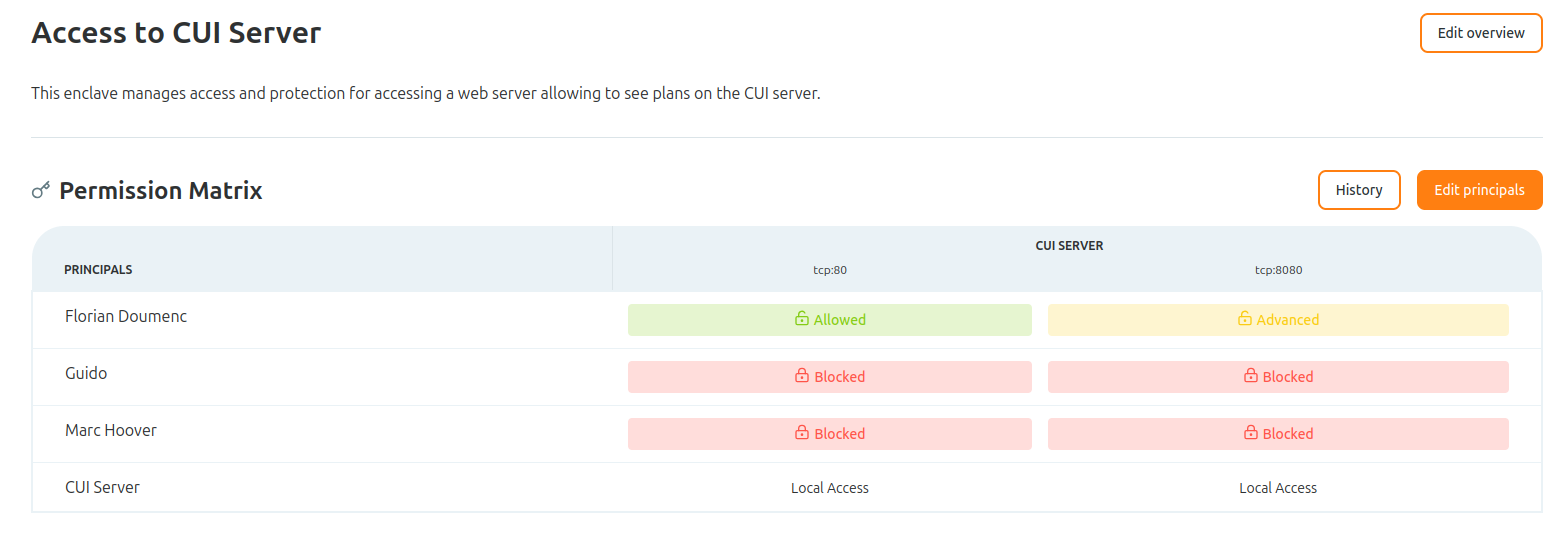
You can use Access Gate to add a layer of identity and encryption in front of an app that only speaks plaintext, combining an access screen with TLS encryption.
Embedded-HMI gotchas
Industrial web interfaces are rarely built to sit behind a proxy. The recurring snags:
- Hardcoded
http://<ip>links. Some HMIs embed absolute URLs that point straight at the device IP, bypassing the gate. Reaching the app over the overlay name or IP, rather than the device's raw address, keeps those links inside the brokered path. - Mixed content. A page served over HTTPS that pulls scripts or images over plaintext HTTP gets blocked by the browser. Terminating TLS at the gate while the device stays HTTP can surface this; reaching assets through the same overlay path avoids the mismatch.
- WebSockets. Live dashboards and SCADA web clients often use WebSockets (
ws://orwss://). They ride the same HTTP(S) grant, but confirm the upgrade is allowed end to end if a dashboard stops updating. - Self-signed device certs. If the device serves HTTPS with a self-signed certificate, terminate-and-re-encrypt lets the gate connect on the protected side while users still see the gate's trusted certificate.
Recap
You published a web HMI or device admin page through an enclave, chose how TLS is terminated (forward plaintext, re-encrypt, or passthrough), and decided whether an access screen authenticates the user first, so a legacy device gets encryption and identity in front of it without any change on its side.
Reach for this whenever industrial gear exposes a plaintext or self-signed HTTP interface with weak authentication, and you need encryption and access control without modifying the device.