
DNS maps a human-readable name to a network address, so you reach a machine by plc-line-1 instead of remembering an IP. In industrial environments it is not widely used: it adds a moving part to the network, and OT teams have historically preferred static, hard-coded addresses they can reason about.
Used deliberately through Access Gate, DNS earns its place. It simplifies access and maintenance over time: when an asset's IP changes, you update one entry instead of hunting through configurations across the site, which gives you a clean path to migrate IPs.
DNS is one of the secure services Access Gate hosts on-platform for OT. Because the gate is a VNF running on x86 hardware you own, security is decoupled from proprietary boxes, and the same host that gates access can also run resolution for the assets behind it, one of the services that pulls OT in rather than a separate box to stand up.
DNS entries are managed straight from the Asset tab, where you also build your asset inventory. Names and assets live in one integrated system, which keeps the whole setup consistent and simple.
Create a DNS entry for an asset
Each asset in Access Gate can have its own DNS entry. You only specify the prefix.
- Go to Asset → [Asset] and select the pencil icon.
- Add a DNS entry by entering the prefix.
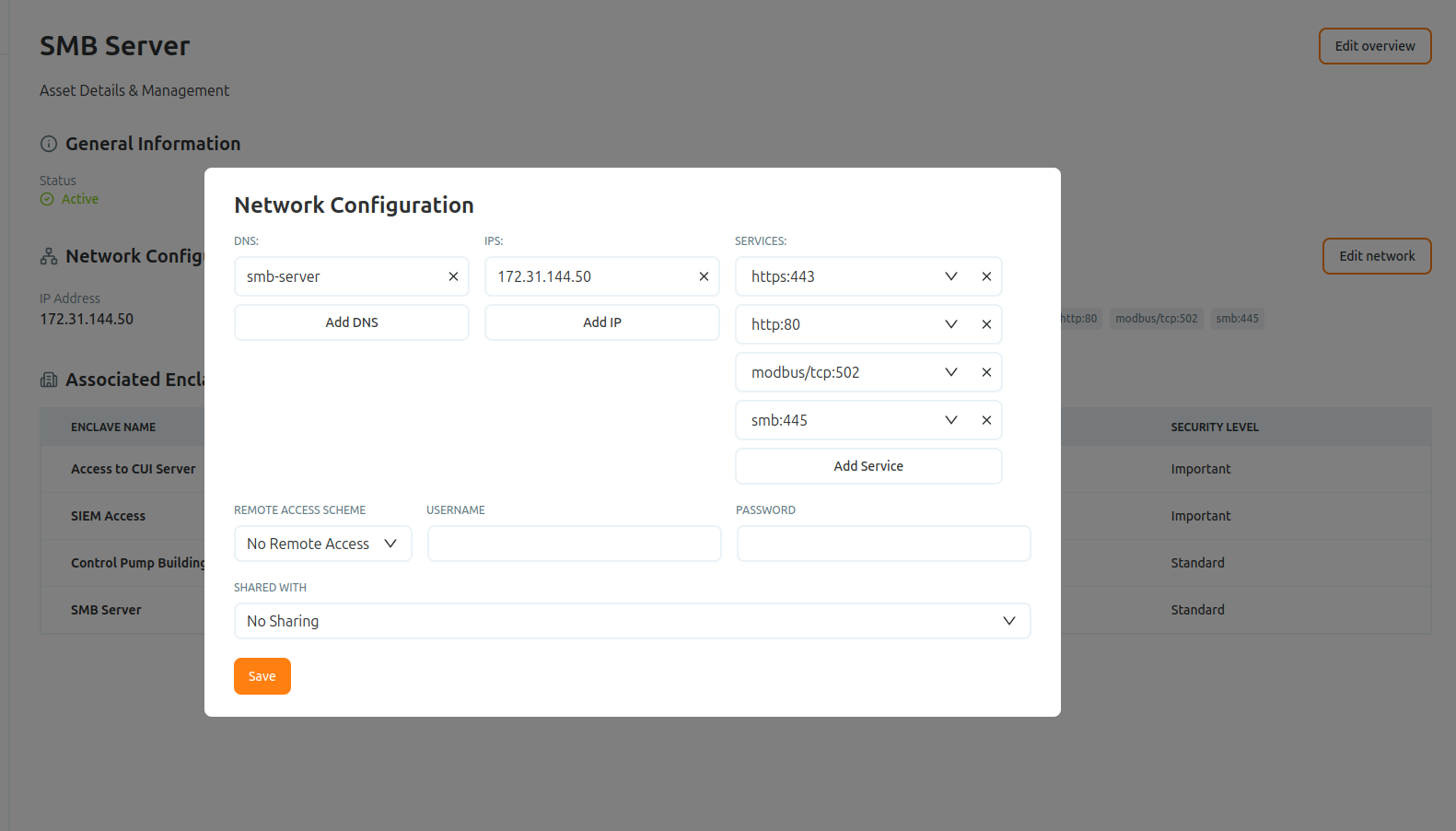
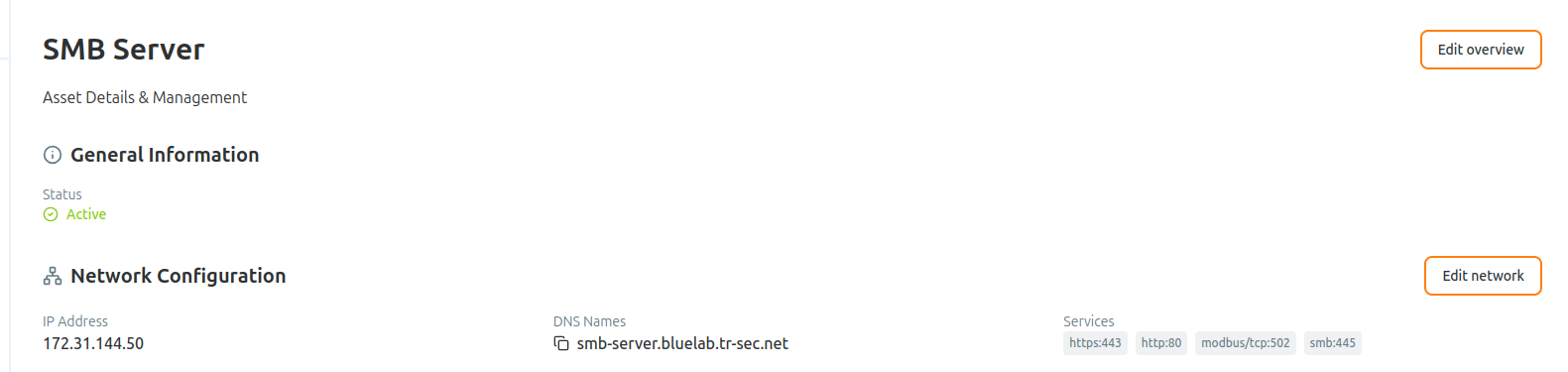
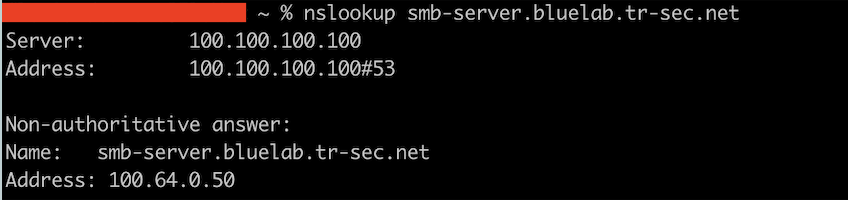
The DNS name now resolves to the asset's overlay IP, so traffic sent to that name is directed through the Access Gate proxy rather than straight to the device.
Where the suffix comes from
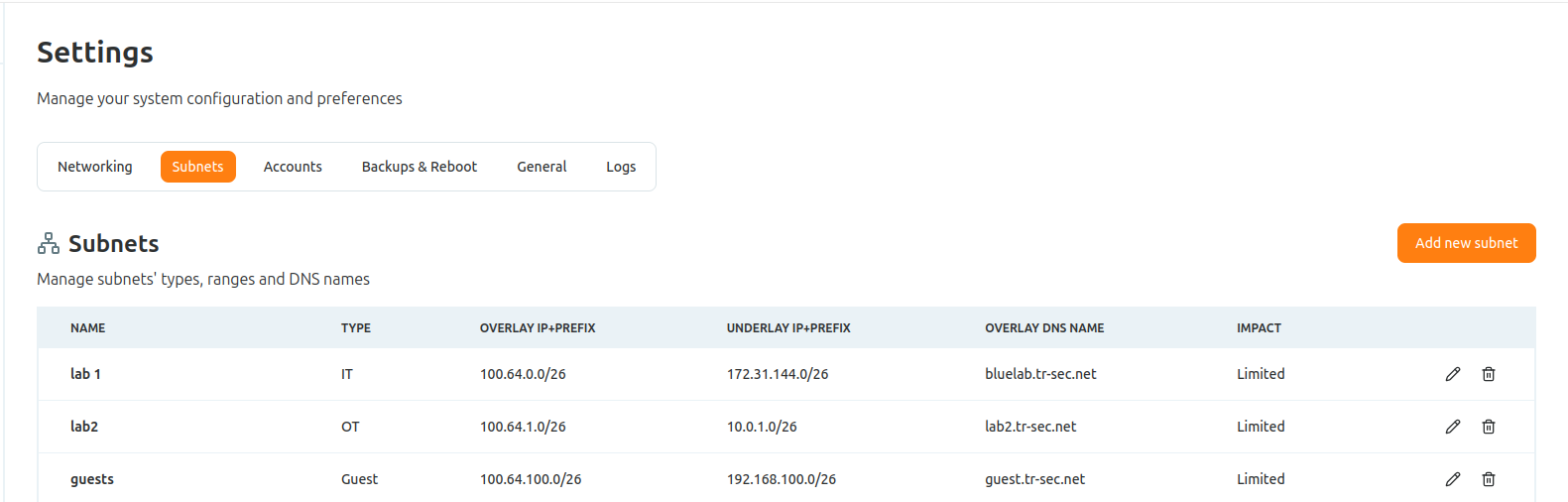
The suffix portion of the DNS entry is populated directly from your vnet configuration, under Settings → Subnets → Overlay DNS Name. Set it once per subnet and every asset entry inherits it.
Recap
We gave assets memorable DNS names by setting a per-asset prefix on the Asset tab and a per-subnet suffix under Settings, so names resolve to each asset's overlay IP through the Access Gate proxy. Reach for this to simplify access and maintenance, decouple access from IPs for clean migrations, and lay the foundation for SSL/TLS certificates issued against a name.