
Printing is a data flow like any other. When the document is Controlled Unclassified Information (CUI), the print job carries CUI over the network, and the printed page is CUI on paper. For CMMC, that makes the printer part of the CUI boundary: who can send it a job, how the job travels, and who picks up the page all matter.
Network printers are also soft targets. Most accept anything on port 9100 from anyone who can reach them, expose an admin web page, and often keep older services such as FTP, Telnet or SNMP with default settings. Putting the printer behind Access Gate turns "anyone on the network can print" into "only signed-in users of this enclave can print".
Printing protocols decide what is possible
- Raw printing (JetDirect, TCP 9100). The most common. The client opens a connection and sends the job. There is no authentication and no encryption: anyone who can reach the port can print, and the job crosses the network in clear text.
- LPD (TCP 515). Older, same limits as raw printing.
- IPP (TCP 631) and IPP over TLS (IPPS). The modern protocol. IPPS encrypts the job between client and printer, when both support it.
The practical consequence: with raw printing, reachability is the only control on who can print, and the network path is the only protection of the job. That is exactly the layer Access Gate provides.
Three layers to secure printing
Layer 1: control who can print (Access Gate)
Add the printer as an asset with the services it needs: tcp:9100 for printing, and http:80 if users should see its status page. Place it in an enclave and grant those services to the users or groups allowed to print CUI. See Protecting an asset with enclaves and Access Control Lists.
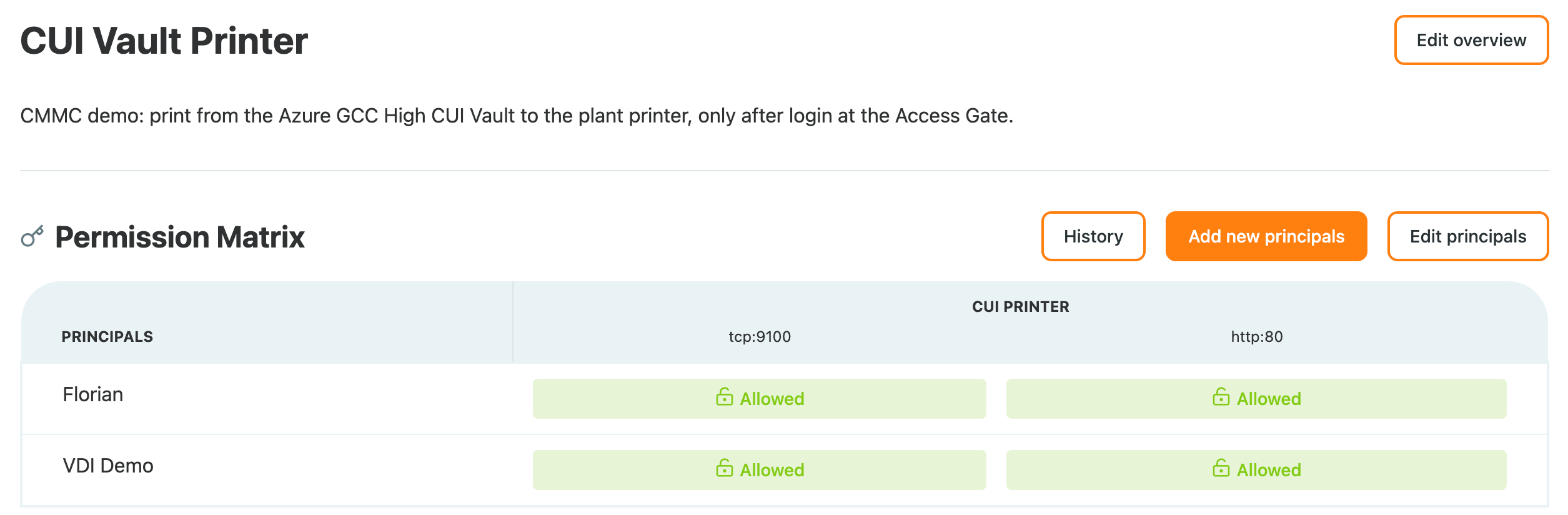
Add an access screen so users sign in before the printer becomes reachable. With an Active Directory directory, users sign in with their user principal name. See Authenticate users with access screens.
On the client, point the printer at the printer's twin address, not its real one, so every job goes through Access Gate. On Windows, add it by hand with a raw TCP port (see the gotcha below about the Add a printer wizard):
Add-PrinterPort -Name "PRN-01" -PrinterHostAddress "<printer twin address>" -PortNumber 9100
Add-Printer -Name "PRN-01" -DriverName "Microsoft PCL6 Class Driver" -PortName "PRN-01"
"Test page - $(Get-Date)" | Out-Printer -Name "PRN-01"
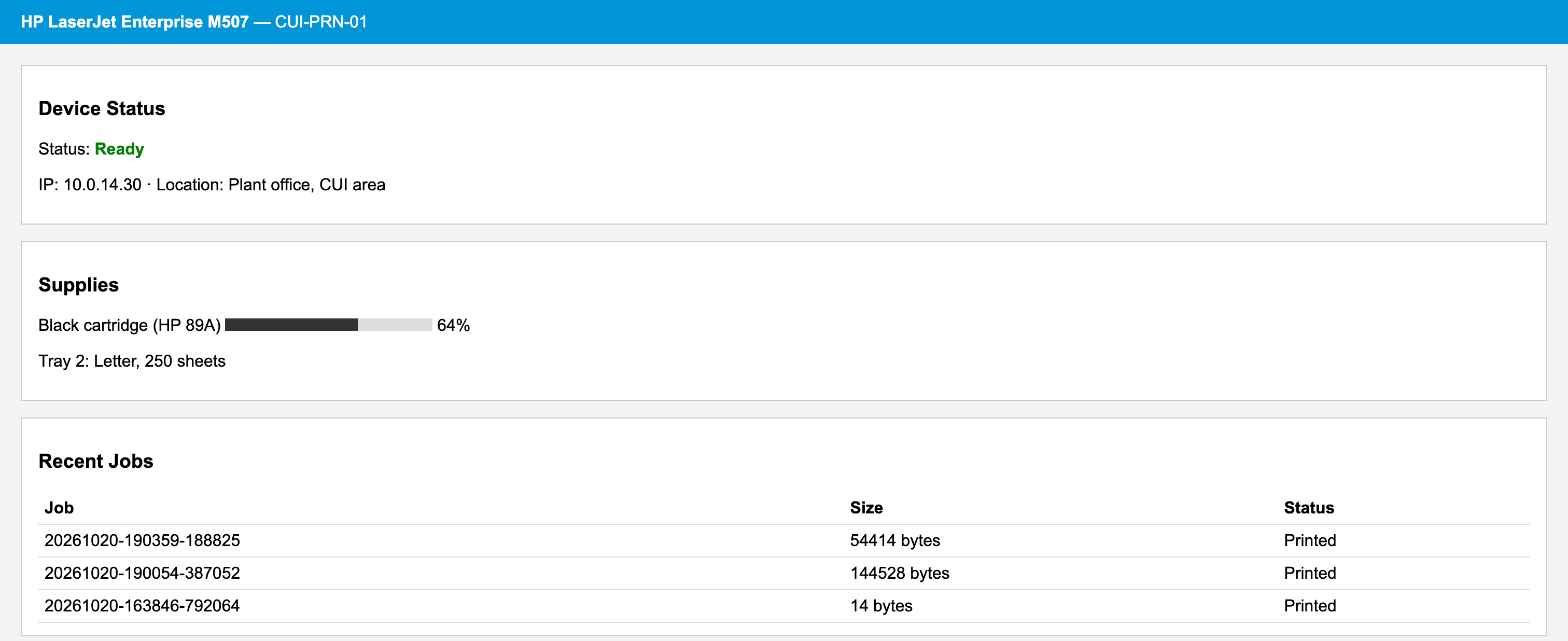
The job reaches the printer through Access Gate. Its status page, reached through the twin address too, lists the jobs it received:
Users who have not signed in, and any other machine, cannot reach the printer: Access Gate refuses the connection.
Layer 2: protect the job on the wire
Raw printing on port 9100 sends the document in clear text. Two ways to protect it:
- Use IPPS where both the client and the printer support it, and grant the IPPS service instead of
tcp:9100. - Protect the path. When users print from a remote or cloud CUI environment, the job reaches the site over an encrypted tunnel, and only the last leg, from Access Gate to the printer, is in clear text. Keep that leg short: put the printer on a segment where Access Gate is the only way in.
State honestly which legs are encrypted rather than assuming the whole path is.
Layer 3: control the printed page (printer settings)
Access Gate decides who can send a job; the printer decides what happens next. On the printer itself:
- Hold jobs until release (PIN or badge at the printer), so CUI does not sit in the output tray.
- Turn off what you do not use: FTP, Telnet, LPD, SNMP v1 with the default community, and protect the admin page with a strong password.
- Mark CUI as your CUI program requires, for example with a banner or watermark set on the print server or in the application.
Example: from the CUI Vault cloud enclave to the shop floor
The Trout Software and CUI Vault integration is a printing flow built end to end for CMMC. Users work in CUI Vault, NtelSec's managed Microsoft GCC High enclave, and print to a printer in the plant:
- In the cloud enclave, users work on a virtual desktop. The CUI never lands on a local workstation.
- On the way, the enclave connects to Access Gate over an IPsec tunnel on FIPS 140-3 validated modules.
- On site, Access Gate checks who is printing, terminates the session, and passes the job only to the authorized printer. The cloud enclave is never routed onto the plant network.
- At the printer, the job arrives as a normal job. The printer needs no change.
The screenshots on this page come from that flow: the VDI Demo principal is the cloud desktop, and the jobs on the status page were printed from it. For the whole journey of CUI from the cloud enclave to the machine, see The Last Hop: Carrying CUI From a Cloud Enclave to the Machine That Uses It.
Notes & Gotchas
- Discovery does not cross Access Gate. WSD, mDNS and other broadcast discovery stay on the local segment. Users add the printer by its twin address.
- Raw printing has no acknowledgment. Windows marks the job as done when the connection closes cleanly. The status page, or the printer's job log, is the confirmation.
- The printer's replies must come back through Access Gate. The printer sees the user under their twin address, so its router must route the twin addresses to Access Gate. See How the reply comes back.
Recap
You put a CUI printer behind Access Gate in layers: an enclave and access screen so only signed-in users can send a job, an encrypted protocol or path so the job is protected on the wire, and printer settings so the printed page and the printer itself stay under control.
Reach for this when CUI is printed on site, and you need to show who could print, how the job traveled, and that nobody else could reach the printer.